



Summarizing Message Tracking Logs
-
Twan van Beers
-
30 May, 2014
Exchange does a great job at logging all kinds of information, some by default and some can be switched on or extended. One example of this is the Exchange Message Tracking Logs. These logs can get large and analysing the data can be a bit of a chore. Some of the questions we are often asked are:
- How much mail is going through this Exchange server?
- What is the average mail size?
- What is the percentage of daily mail sent each hour?
- What is the largest message sent today?
- Why was there are message queue between 3 and 4pm today?
All of this information is in the Message Tracking Logs, but getting the information out is sometimes a little trickier. Luckily PowerShell has some great Exchange cmdlets to help us out.
The attached script takes two parameters, the name of the server and the date to do the analysis for. It creates a csv file in your My Documents folder called MessageStats-ServerName-Date.csv.
Within this file the following columns are available:
| Column Name | Description |
|---|---|
| Server | The name of the server that these statistics are for |
| Hour | The hour of the day that these statistics are for |
| ConnectorId | The name of the Send or Receive connector |
| MessageCountOut | The number of messages sent from this server |
| MessageCountIn | The number of messages sent to this server |
| TotalBytesOut | The total number of bytes sent from this server |
| TotalBytesIn | The total number of bytes sent to this server |
| AverageBytesOut | The average bytes per message sent from this server |
| AverageBytesIn | The average bytes per message sent to this server |
| MinimumBytesOut | The smallest message sent from this server |
| MinimumBytesIn | The smallest sent to this server |
| MaximumBytesOut | The largest message sent from this server |
| MaximumBytesIn | The largest message sent to this server |
Open the csv file in Excel and suddenly you can do all kinds of smart graphs, pivot tables and filters to answer not only the above questions, but many more beyond that.
We hope that this will help others in their endeavours with Microsoft Exchange!
*** As always the script is provided on an as is basis, please test it before you use it in a production environment. ***
Twan van Beers
Twan is a senior consultant with over 30 years of experience. He has a wide range of skills including Messaging, Active Directory, SQL, Networking and Firewalls. Twan loves to write scripts and get deep and dirty into debugging code, in order to understand and resolve the most complex of problems.
News & Insights
Trusted insights on technology and innovation to power your business growth.

-
03/06/2026
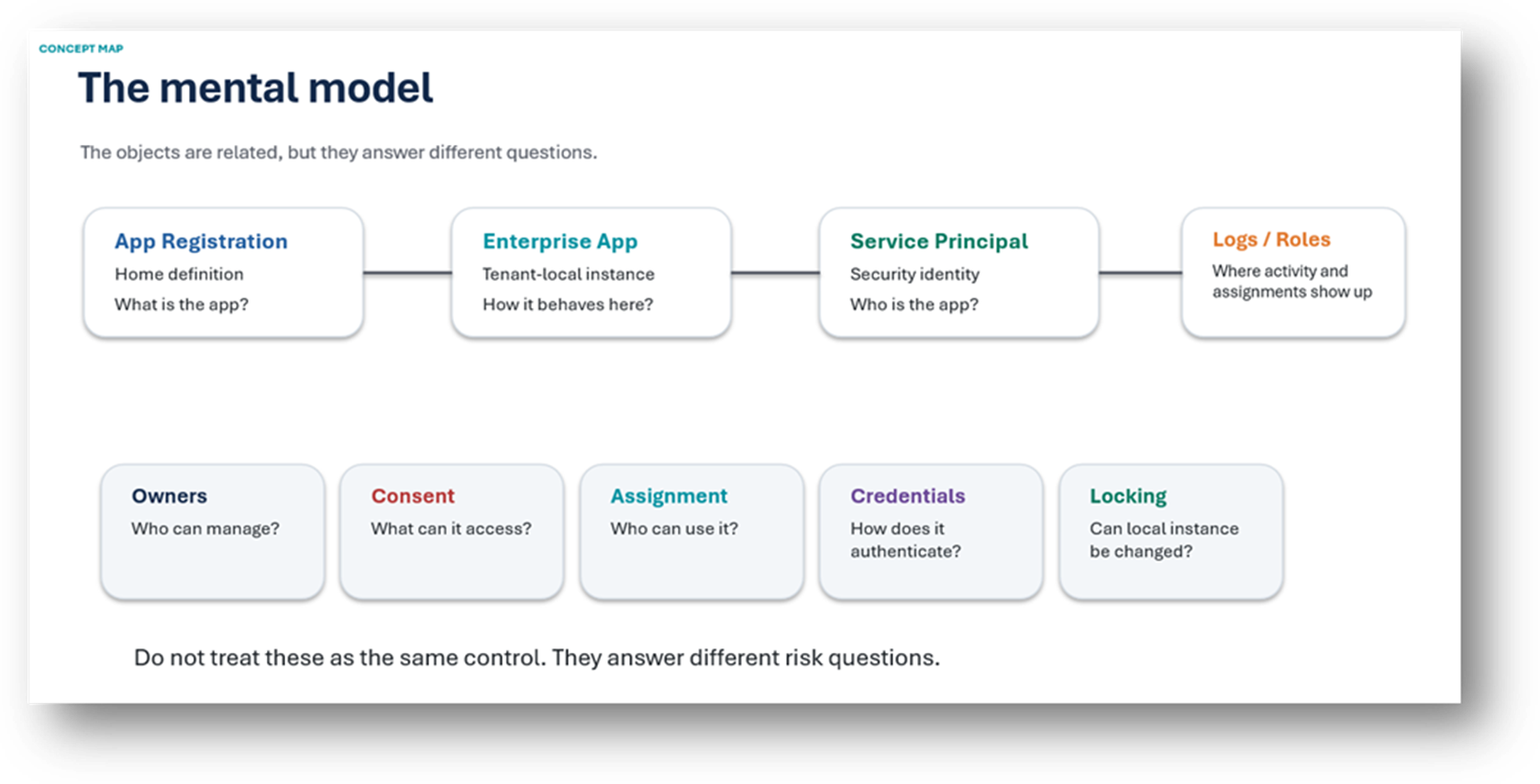
A practical engineering guide to owners, assignment, consent, credentials and ...
Read More

-
19/05/2026
Domain migrations in Microsoft 365 are rarely as simple as shifting email ...
Read More

-
12/05/2026
Over the past 10 to 15 years, Microsoft 365 has fundamentally reshaped how ...
Read More

-
07/05/2026
Yesterday we had an all company meeting and I thought it would be cool to kick ...
Read More

-
07/05/2026
Planning a tenant-to-tenant migration? Talk to us
Read More

-
31/03/2026
In tenant-to-tenant (T2T) and Google-to-Microsoft 365 migration projects, ...
Read More
-
27/03/2026
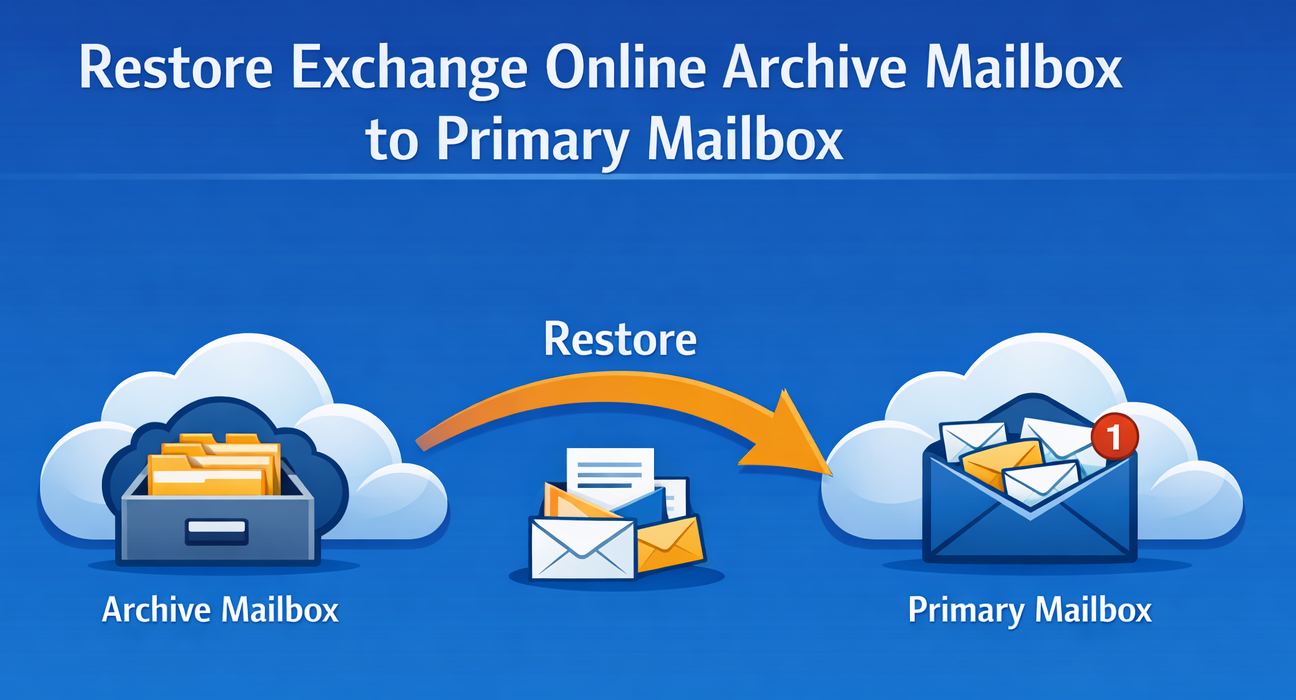
You’d think this would be easy and not an uncommon request. There are genuine ...
Read More

-
23/03/2026
Managing Google to Microsoft Migration with GAM7 and PowerShell
Read More
-
16/03/2026
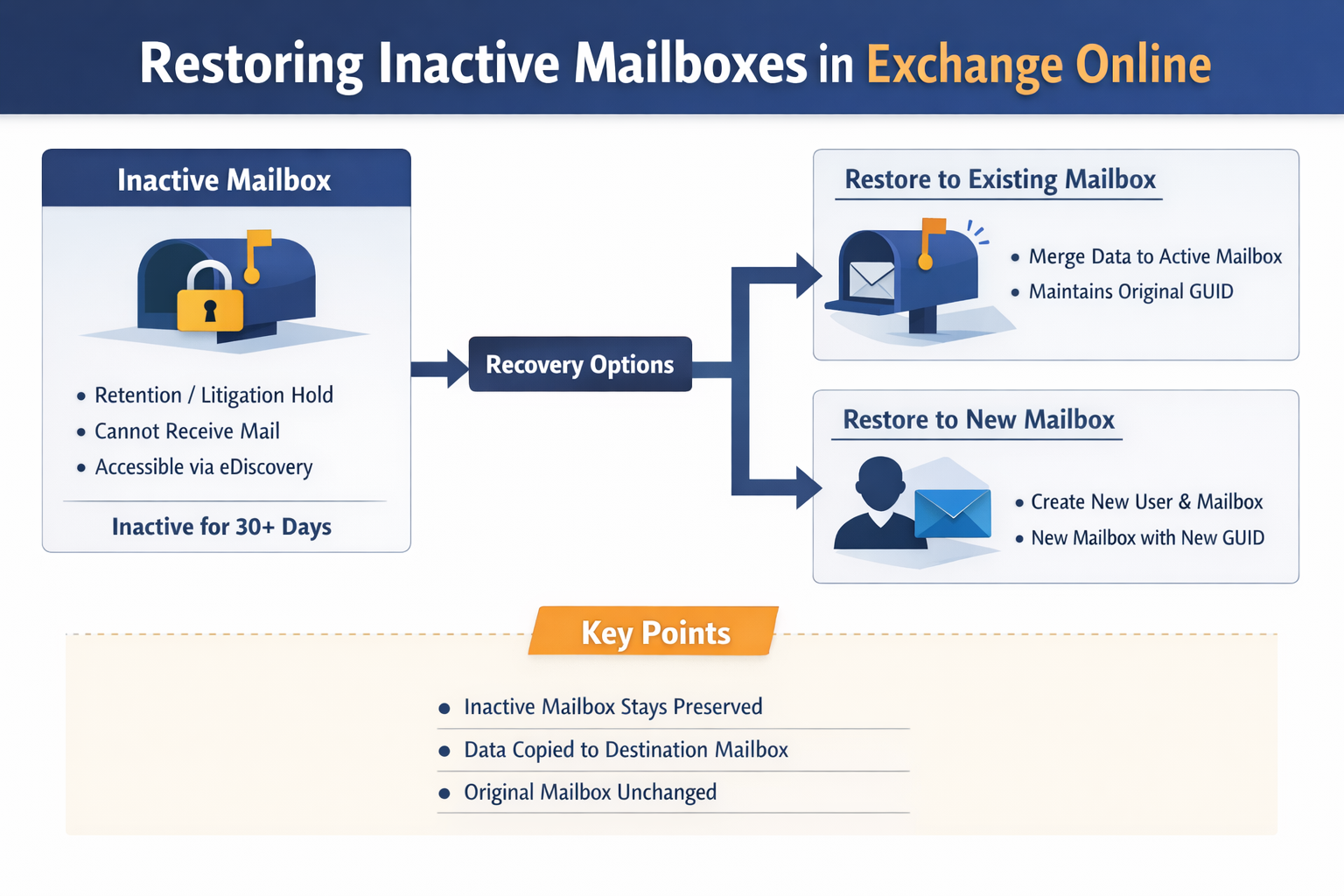
When a user leaves an organisation in Microsoft 365, administrators have ...
Read MoreSubscribe to our newsletter for the latest updates and insights.
Like what you see? Stay in touch! Subscribers to our email list are among the first to receive the latest news, views and updates from Nero Blanco
Summarizing Message Tracking Logs">