When a user leaves an organisation in Microsoft 365, administrators have several options for how to handle the user’s mailbox. The approach chosen determines how long the mailbox data is retained and how it can be recovered in the future.
Option 1: Convert the mailbox to a Shared Mailbox
A common approach is to convert the user mailbox to a Shared Mailbox.
The process is typically:
- Convert the mailbox to a shared mailbox
- Disable or remove the user account
- Remove the Microsoft 365 licence
- Hide from GAL and rename to something like: zzLeaver-Joe Bloggs
When this is done:
- The mailbox and any associated archive remain intact
- A licence is not required for a shared mailbox (provided it remains within size limits)
- The mailbox can still be accessed by administrators or delegated users
This approach is useful when the mailbox needs to remain accessible for operational reasons.
Option 2: Delete the user and remove the licence
If the user account is deleted from Microsoft Entra ID, the associated mailbox enters a soft-deleted state.
Soft-Deleted Mailboxes
When a user is deleted:
- The mailbox and archive are soft-deleted and retained for 30 days
- During this 30-day window the mailbox can be fully restored
Restoration is straightforward:
- Restore the user from the Entra ID recycle bin
- Reassign an Exchange Online licence
When this occurs:
- The original mailbox is reconnected
- The Mailbox GUID remains the same
- All mailbox data, including the archive, is restored
If the user is not restored within 30 days, the user account and mailbox are permanently deleted by default.
Option 3: Leave mailboxes on retention hold (inactive mailboxes)
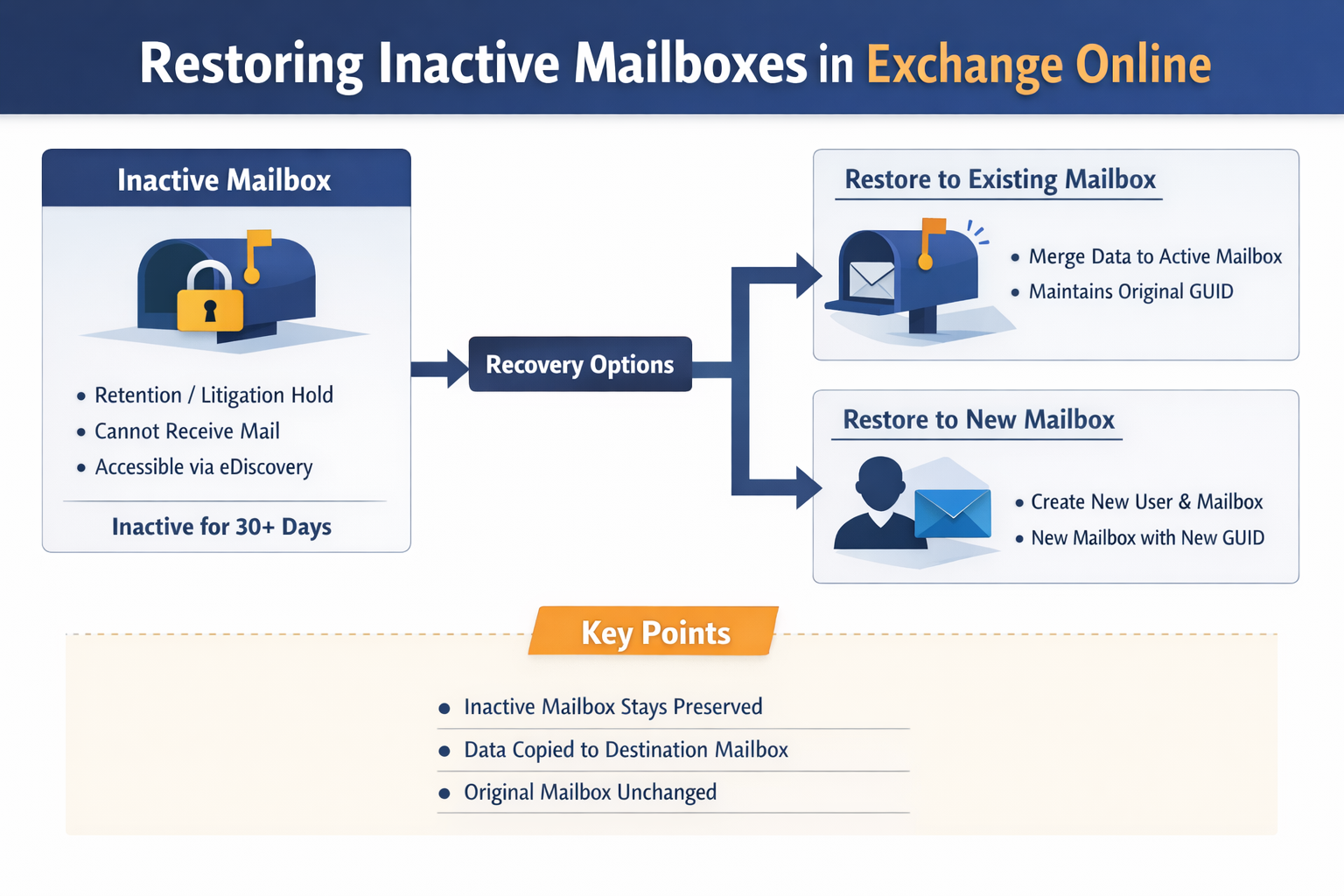
If a mailbox is subject to a Retention Policy, Retention Hold, or Litigation Hold when the user account is deleted, the mailbox is not permanently deleted after 30 days.
Instead, it becomes an Inactive Mailbox.
Inactive mailboxes:
- Cannot receive new mail
- Cannot be logged into
- Remain searchable via eDiscovery
- Remain preserved for as long as the retention policy applies
Administrators can search inactive mailboxes and export data, for example:
- Export mailbox content to PST
- Retrieve specific data through eDiscovery searches
Restoring an inactive mailbox
Inactive mailboxes can be restored using New-MailboxRestoreRequest.
There are two common restore scenarios.
Restore to an existing mailbox
The most common method is to restore the contents of the inactive mailbox to another mailbox.
Typical process:
- Choose an existing user and mailbox
- Assign an Exchange Online licence if required
- Enable an archive mailbox if required
- Run New-MailboxRestoreRequest
Examples:
Get inactive primary mailbox
Get-Mailbox joe.bloggs -InactiveMailboxOnly | FL IsInactiveMailbox,Name,Identity,PrimarySmtpAddress,UserPrincipalName,WindowsEmailAddress,MicrosoftOnlineServicesID,ExchangeGuid,ArchiveGuid
Get inactive archive mailbox
Get-Mailbox joe.bloggs -InactiveMailboxOnly -Archive | FL IsInactiveMailbox,Name,Identity,PrimarySmtpAddress,UserPrincipalName,WindowsEmailAddress,MicrosoftOnlineServicesID,ExchangeGuid,ArchiveGuid
Restore primary inactive mailbox example
New-MailboxRestoreRequest -SourceMailbox [Source ExchangeGuid] -TargetMailbox restoreto.user@domain.com -AllowLegacyDNMismatch
This restores:
- The primary mailbox contents
To restore the archive mailbox you must run an additional restore request.
Restore inactive archive mailbox example:
New-MailboxRestoreRequest -SourceMailbox [Source ExchangeGuid] -SourceIsArchive -TargetMailbox restoreto.user@domain.com -TargetIsArchive -AllowLegacyDNMismatch
Important Note: If the target mailbox does not have an archive enabled, the archive content cannot be restored until the archive mailbox is enabled.
Restore to a new mailbox
A restore request can also be used to restore the contents of the inactive mailbox into a new mailbox associated with a newly created user account.
In this scenario the administrator typically:
- Creates a new user account in Microsoft Entra ID
- Assigns an Exchange Online licence
- Enables the archive mailbox if the original mailbox had one
- Runs New-MailboxRestoreRequest to restore the data
Mailbox restore request behaviour
Important behaviour to understand:
- The restore process copies mailbox data into the destination mailbox
- The destination mailbox is a newly created mailbox with a different Mailbox GUID
- The original mailbox itself is not reconnected
During the restore process:
- Mailbox items are recreated in the target mailbox
- Exchange assigns new internal item identifiers
However, the original message metadata remains intact, including:
- Message headers
- Routing information
- Internet Message IDs
This ensures the restored messages remain consistent with their original transport history.
Archive mailbox considerations
When restoring an inactive mailbox that has an archive:
- If the target mailbox already has an archive enabled, the archive can be restored using the -SourceIsArchive and -TargetIsArchive parameters
- If the archive is not enabled beforehand, the restore request will only restore the primary mailbox content
In this case:
- Enable the archive on the target mailbox
- Run a second restore request targeting the archive
Check restore status
Get-MailboxRestoreRequest | Get-MailboxRestoreRequestStatistics
Key takeaway
Inactive mailboxes provide a powerful mechanism for retaining and recovering mailbox data after a user leaves the organisation.
Unlike soft-deleted mailboxes, which are removed after 30 days, inactive mailboxes remain preserved for the duration of the organisation’s retention policies and can be searched or restored when needed.
Understanding the differences between soft-deleted, shared, and inactive mailboxes is critical for designing effective data retention and recovery strategies in Exchange Online.
The restore operation does not modify the inactive mailbox. The data is copied to the destination mailbox while the inactive mailbox remains preserved for retention and eDiscovery purposes.
Real-world migration gotcha
During a recent project we were asked to migrate active mailboxes and “leavers”.
The leavers were not terminated users that had been converted to shared mailboxes as we had assumed, but instead were Inactive Mailboxes (beyond 30 days) held under retention policies. This required us to restore those mailboxes before they could be migrated.
During the migration project some active users also became terminated. After 30 days their mailboxes transitioned to an Inactive Mailbox state, meaning they also moved into the inactive mailbox migration batches.
The migration tooling had already processed those users while they were active mailboxes. When we restarted migrations using the existing migration records we observed that nearly all mailbox data was migrated again and duplicated.
What had happened was:
- The initial migration pass ran against the active mailbox
- The subsequent migration pass ran against the restored mailbox
Because the restored mailbox had a different ExchangeGUID and different internal item identifiers, the migration tools treated the content as new items, resulting in duplication.
Fortunately, we detected this early and were able to remediate the issue by running fresh migrations targeting only the restored mailbox contents.
Final Tip:
If a mailbox is still within the 30-day soft-delete window, always restore the user account and re-licence rather than performing a mailbox restore. This reconnects the original mailbox and preserves the ExchangeGUID, avoiding duplicate data during migrations.




 Conrad Murray
 16 March, 2026


 03/06/2026