



Exchange PowerShell Quickstart - Part 3
-
Twan van Beers
-
31 October, 2014
Over the past two weeks we have covered connecting to Exchange and discovering cmdlets in part 1, and we explored the pipeline in part 2. This week we will be talking about hash tables, arrays and variables.
Hash Tables
The easiest way to picture a hash table is a list of attributes and their respective value. E.g. in Active Directory each object has a list of attributes like distinguishedName, mail, Name, etc. In Powershell this would be a single hash table with the keys being the attribute names and the values being the value for each key. When you get a single mailbox then the resulting object is like a hash table, as in it has a set of properties and each property has a value. You can refer to the value of a property by using a dot and the name. e.g.
(get-mailbox 'someone special').FirstNameIn order to manually create a hash table you would use the @{ } symbols to declare it. For example
$hashtable = @{ 'key1' = 'value1'; 'key2' = 'value2' } $hashtable.key1The great thing about hash tables is being able to refer to each value by name
Arrays
An array is like a hash table but the attributes have numbers rather than names. In order to manually create an array you would use the @( ) symbols to declare it. For example
$array = @( 'value1', 'value2' ) $array[0]Notice that the difference between the symbols used for an array versus a hashtable is only the type of brackets used. This can be very confusing when debugging a script.
Array of Hash Tables
Now when a cmdlet returns multiple results then the answer can be thought of as an array of hash tables. i.e. each row is a hash table and you can get at each row like you do in an array. For example
$mailboxes = Get-Mailbox a* $mailboxes[1].NameNow strictly speaking what the Exchange cmdlets return is a mailbox object which isn’t 100% a hashtable but it functions close enough to one for the comparison to work (and for me it made things clearer when I thought of them as hash tables)
Variables
The observent ones amongst you will have noticed the $ symbols prefixing a name in the above examples. They are variables, and they are the way to retain results in memory and then manipulate them. To determine the type of variable it is we can use the gettype() method
$mailboxes.gettype()Now variables can simply be used as above without specifically saying what type they are. Powershell will manage the type for you, but there are some side affects..
$a = '1' $a = $a + 1results in ’11’, whereas
[int]$a = '1' $a = $a + 1results in 2
So you do need to be careful when using variables.
There are a handful of built in variables and I’ve listed the most commonly used ones below for ease of reference
| Name | Purpose |
|---|---|
| $_ | The results of the previous command on the pipeline |
| $? | true or false depending on the success of the previous command |
| $true | The boolean true |
| $false | The boolean false |
| $null | a NULL or unassigned value |
| $error | An array of all of the previous errors |
| $env | A way to get to the DOS environment variables, e.g. $env:path |
One useful tip with variables… don’t abbreviate them… Your code is so much more meaningful if you choose names that make sense and are readable. For arrays I always use plural names to signify more than one item, e.g. $mailboxes rather than $mbx. That way when you see foreach( $mailbox in $mailboxes ) it makes sense, whereas foreach( $i in $mbx ) is harder to understand without a wider context…
This concludes the overview of variables, arrays and hash tables in PowerShell, next week we will look at flow control and error handling, so that we can start to build simple but robust PowerShell scripts!
Twan van Beers
Twan is a senior consultant with over 30 years of experience. He has a wide range of skills including Messaging, Active Directory, SQL, Networking and Firewalls. Twan loves to write scripts and get deep and dirty into debugging code, in order to understand and resolve the most complex of problems.
News & Insights
Trusted insights on technology and innovation to power your business growth.

-
03/06/2026
A practical engineering guide to owners, assignment, consent, credentials and ...
Read More
-
19/05/2026
Domain migrations in Microsoft 365 are rarely as simple as shifting email ...
Read More
-
12/05/2026
Over the past 10 to 15 years, Microsoft 365 has fundamentally reshaped how ...
Read More

-
07/05/2026
Yesterday we had an all company meeting and I thought it would be cool to kick ...
Read More
-
07/05/2026
Planning a tenant-to-tenant migration? Talk to us
Read More
-
31/03/2026
In tenant-to-tenant (T2T) and Google-to-Microsoft 365 migration projects, ...
Read More
-
27/03/2026
You’d think this would be easy and not an uncommon request. There are genuine ...
Read More
-
23/03/2026
Managing Google to Microsoft Migration with GAM7 and PowerShell
Read More
-
16/03/2026
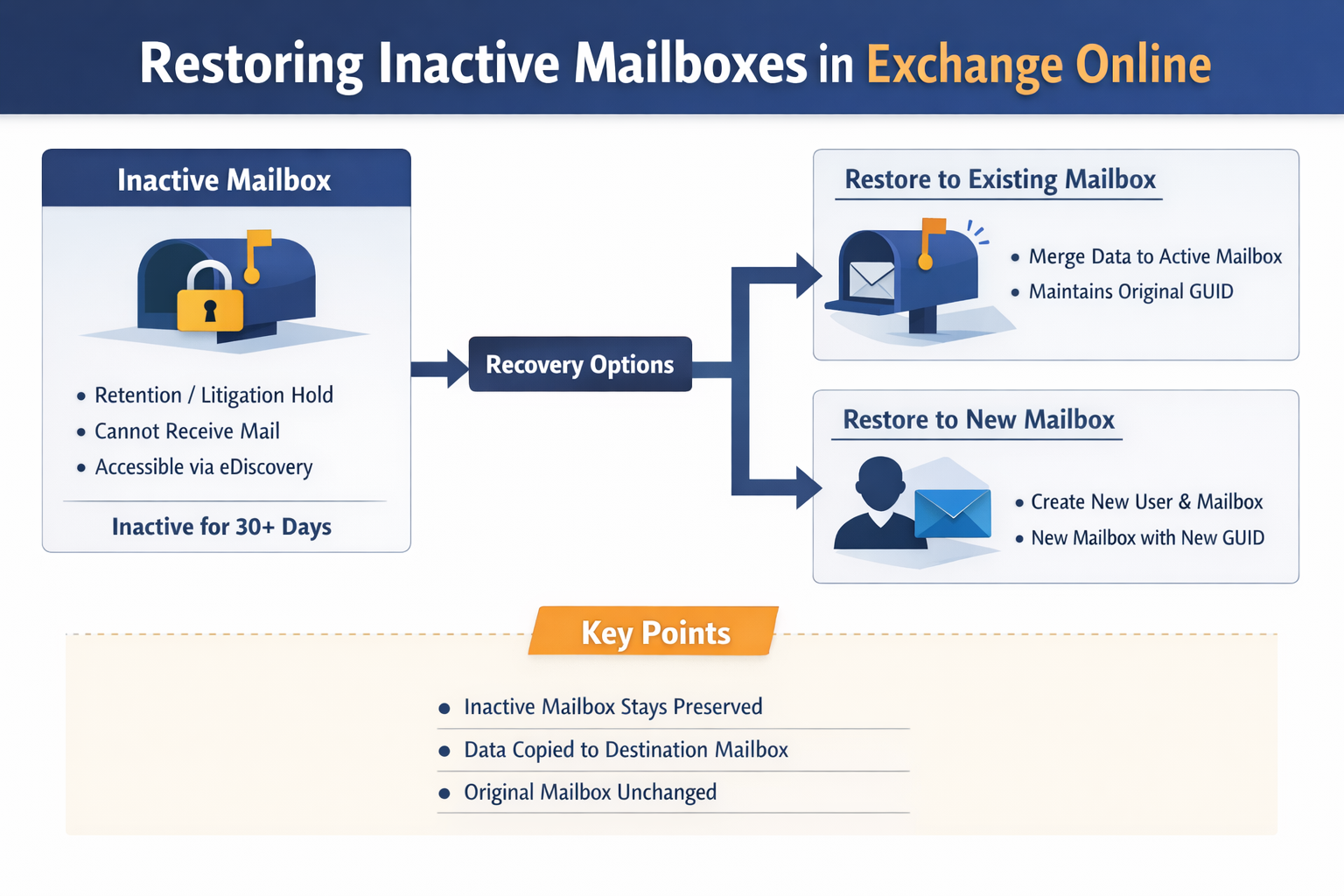
When a user leaves an organisation in Microsoft 365, administrators have ...
Read MoreSubscribe to our newsletter for the latest updates and insights.
Like what you see? Stay in touch! Subscribers to our email list are among the first to receive the latest news, views and updates from Nero Blanco
Exchange PowerShell Quickstart - Part 3">