



-
 Conrad Murray
-
 22 January, 2020
Teams Cache Cleaner
Try this one last time…
Start PowerShell as Admin and run:
Set-ExecutionPolicy -ExecutionPolicy RemoteSigned -Scope Processtaskkill /IM teams.exe /F /T
Get-ChildItem -Path ([System.Environment]::ExpandEnvironmentVariables("%AppData%\Microsoft\Teams")) -Directory | ? { $_ -in ('blob_storage','Cache','Application Cache','Code Cache','databases','GPUCache','IndexedDB','') } | % {Remove-Item $_.FullName -Recurse -Force}
Get-ChildItem -Path ([System.Environment]::ExpandEnvironmentVariables("%AppData%\Microsoft\Teams\meeting-addin")) -Directory | ? { $_ -in ('Cache','') } | % {Remove-Item $_.FullName -Recurse -Force}
Get-ChildItem -Path ([System.Environment]::ExpandEnvironmentVariables("%AppData%\Microsoft\Teams\Service Worker")) -Directory | ? { $_ -in ('CacheStorage','ScriptCache','') } | % {Remove-Item $_.FullName -Recurse -Force}
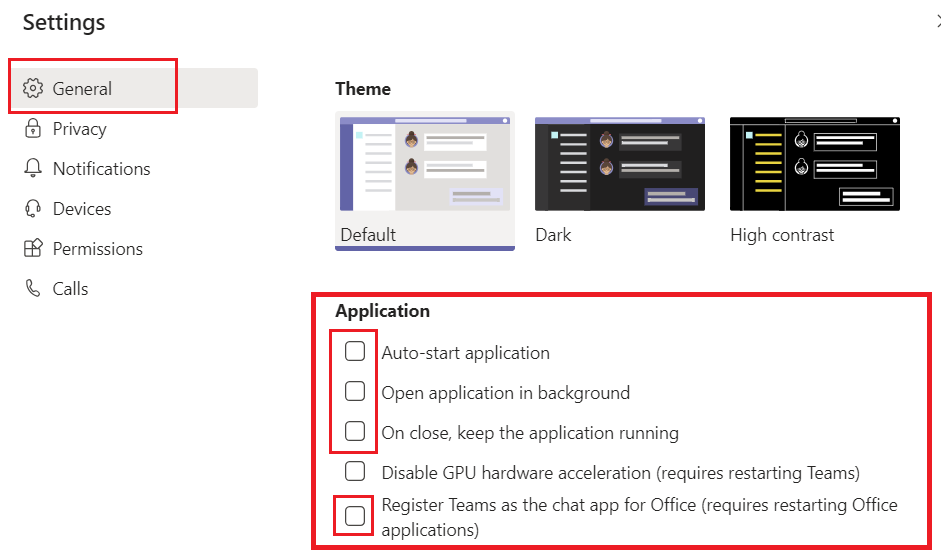
AutoStart Settings
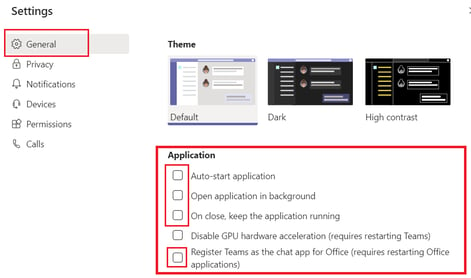
Go to Teams and set it to not auto-start, nor open in background, or stay open when running and don’t have it set for chat app.
Once Teams is uninstalled cache files cleared and registry cleared, these should be moot.
Uninstall Teams
- Quit Teams by right-clicking the Teams icon in the taskbar and choosing Close window.
- In Windows, click on the Start button Start button , > Settings > Apps.
- Under Apps & features, search “teams”.
- Highlight Microsoft Teams, then select Uninstall
- A box will appear, then again select Uninstall to confirm. A new box will appear, asking Do you want to allow this app to make changes to your device? Select Yes.
- Now select Teams Machine-Wide Installer, click Uninstall. Then follow the same process described in step 5
- Delete any remnant cache files
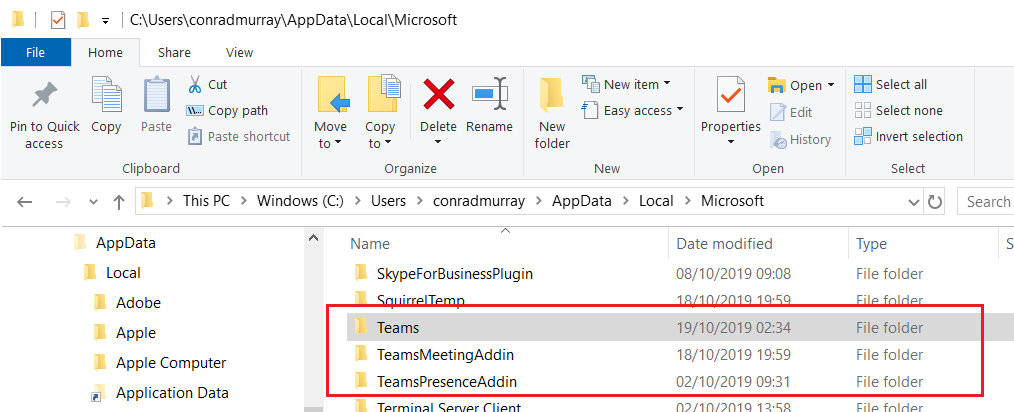
Delete Cache and other files
C:\Users\[USERNAME]\AppData\Local\Microsoft
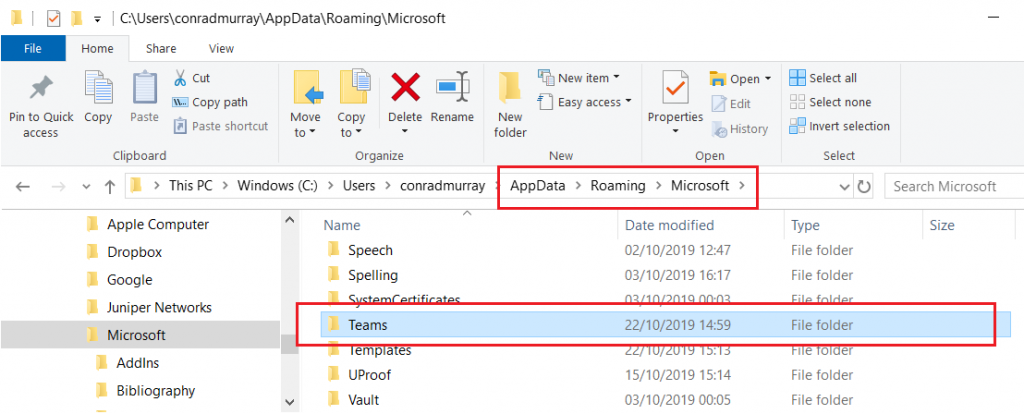
C:\Users\[USERNAME]\AppData\Roaming\Microsoft
C:\Users\[USERNAME]\AppData\Roaming
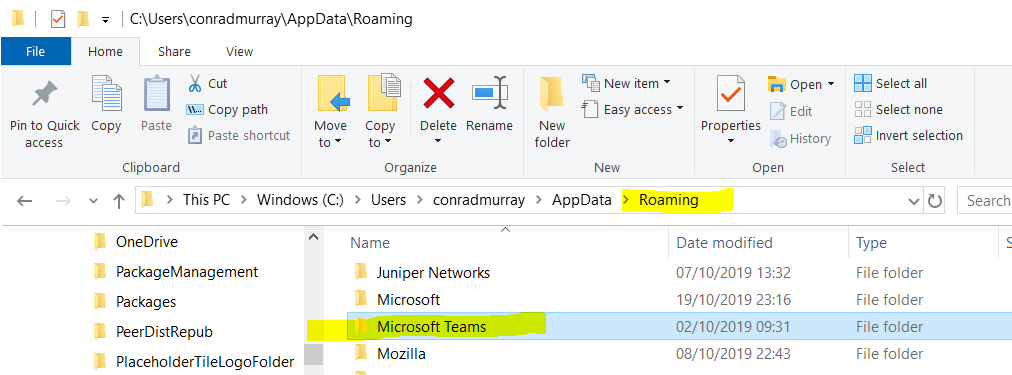
Or Add/Remove Programs
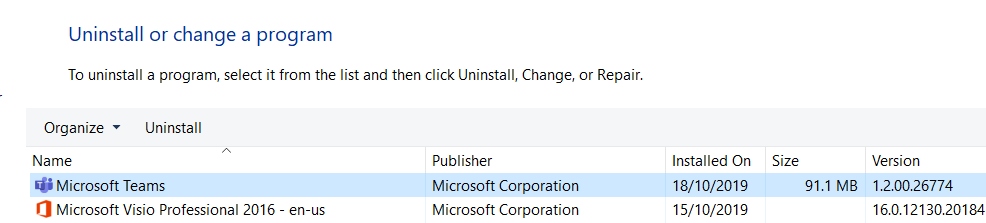
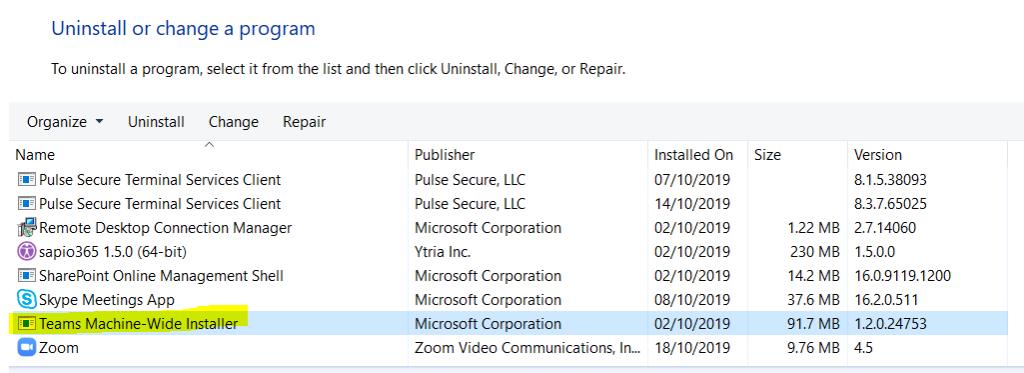
Delete Teams Installer
C:\Program Files (x86)\Teams Installer
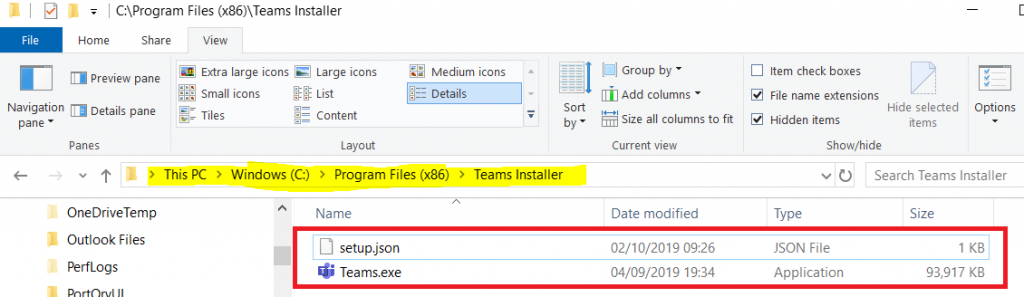 Delete Teams Installer

When the going gets tough – pull out the sledgehammer to crack a nut
Only move to this section if a simple uninstall and re-install didn’t work
Registry
Search Registry and CAREFULLY evaluate and delete any residual keys for Teams or “Microsoft Teams”
Log out of Microsoft Office
Go to Word
File\Account
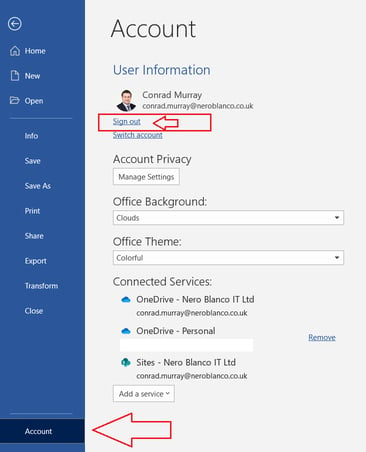
Clear Credentials
Control Panel\User Accounts\Credential Manager
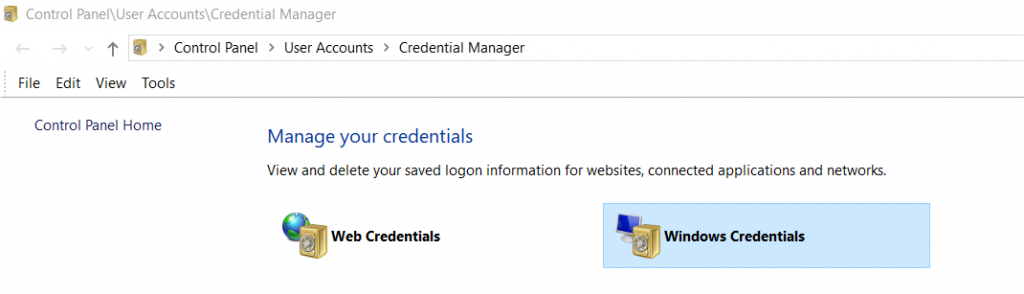

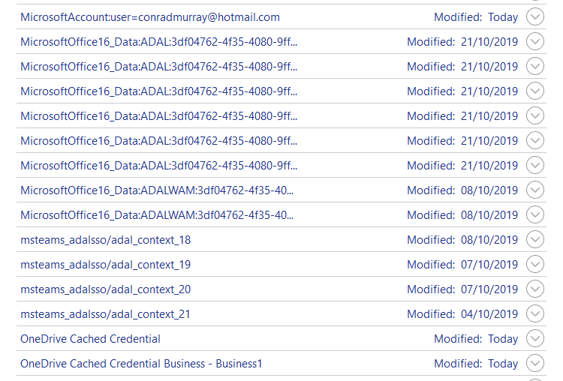
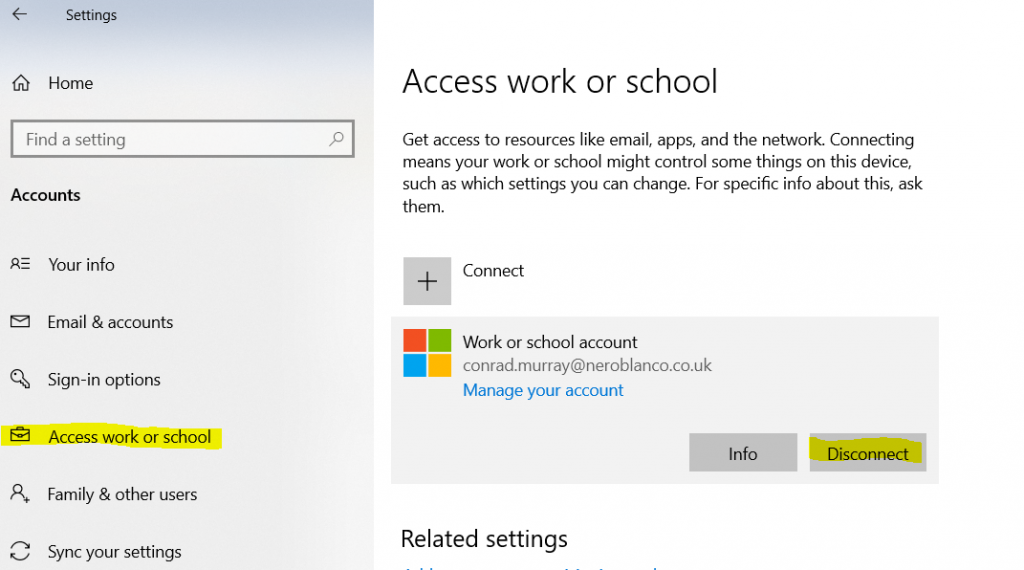
Remove User from Access Work & School
Rename the AAD BrokerPlugin
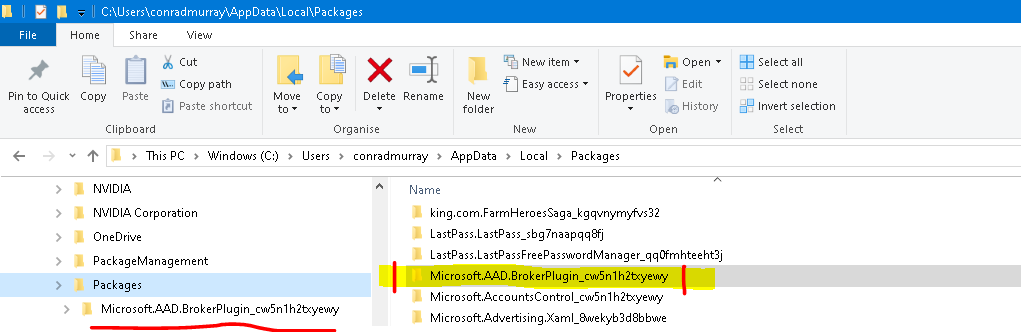
Run with elevated PowerShell
Rename the AAD BrokerPlugin directories to try to avoid TPM errors when using Office
taskkill /IM teams.exe /F /T
taskkill /IM outlook.exe /F /T

$ProfilesDirectoryPath = (Get-ItemProperty -Path "registry::HKLM\Software\Microsoft\Windows NT\CurrentVersion\ProfileList" -Name ProfilesDirectory).ProfilesDirectory
$ProfileDirectories = Get-ChildItem -Path $ProfilesDirectoryPath -Directory
$UniqueRenameKey = ([guid]::newguid()).tostring().replace('-','')
try{
$Renames = (Get-ItemProperty 'registry::HKLM\SYSTEM\CurrentControlSet\Control\Session Manager' -Name PendingFileRenameOperations -ErrorAction SilentlyContinue).PendingFileRenameOperations
if( $Renames ) {
$Renames = $Renames | ? { $_ -notlike 'Microsoft.AAD.BrokerPlugin_' }
}
} catch {
}
if( -not $Renames ) {
$Renames = @()
}
Foreach( $ProfileDirectory in $ProfileDirectories ) {
$AppDataPackagesPath = ('{0}\AppData\Local\Packages' -f $ProfileDirectory.FullName )
if( Test-Path $AppDataPackagesPath ) {
$MicrosoftAADBrokerPluginPackages = Get-ChildItem $AppDataPackagesPath -Directory -Filter 'Microsoft.AAD.BrokerPlugin_*'
Foreach( $MicrosoftAADBrokerPluginPackage in $MicrosoftAADBrokerPluginPackages ) {
$Renames += ('\??{0}' -f $MicrosoftAADBrokerPluginPackage.FullName)
$Renames += ('\??{0}{1}' -f $MicrosoftAADBrokerPluginPackage.FullName, $UniqueRenameKey) } } $UserClassPath = ('{0}\AppData\Local\Microsoft\Windows\UsrClass.dat' -f $ProfileDirectory.FullName )
if( Test-Path $UserClassPath ) { $Renames += ('\??{0}' -f $UserClassPath)
$Renames += ('\??{0}{1}' -f $UserClassPath, $UniqueRenameKey)
}
}
if( $Renames ) {
try{
$DontSave = Get-ItemProperty 'registry::HKLM\SYSTEM\CurrentControlSet\Control\Session Manager' -Name PendingFileRenameOperations -ErrorAction SilentlyContinue
Set-ItemProperty 'registry::HKLM\SYSTEM\CurrentControlSet\Control\Session Manager' -Name PendingFileRenameOperations -Value $Renames
} catch {
New-ItemProperty 'registry::HKLM\SYSTEM\CurrentControlSet\Control\Session Manager' -Name PendingFileRenameOperations -Value $Renames -PropertyType MultiString | Out-Null
}
}
REBOOT
Does Teams automatically reinstall?
No? Good
Reinstall Teams
Go to https://teams.microsoft.com log in and re-install

Conrad Murray
Conrad Murray is a Microsoft Certified IT consultant working in IT for over 20 years specialising in the Messaging arena and in particular Office 365 and previously Microsoft Exchange On-Premises and IBM Domino. Working with like minded colleagues now delivering very large scale complex migrations from Office 365 to Office 365 (tenant to tenant), Lotus Notes and On-Premises Microsoft Exchange to Office 365.
News & Insights
Trusted insights on technology and innovation to power your business growth.

-
 03/06/2026
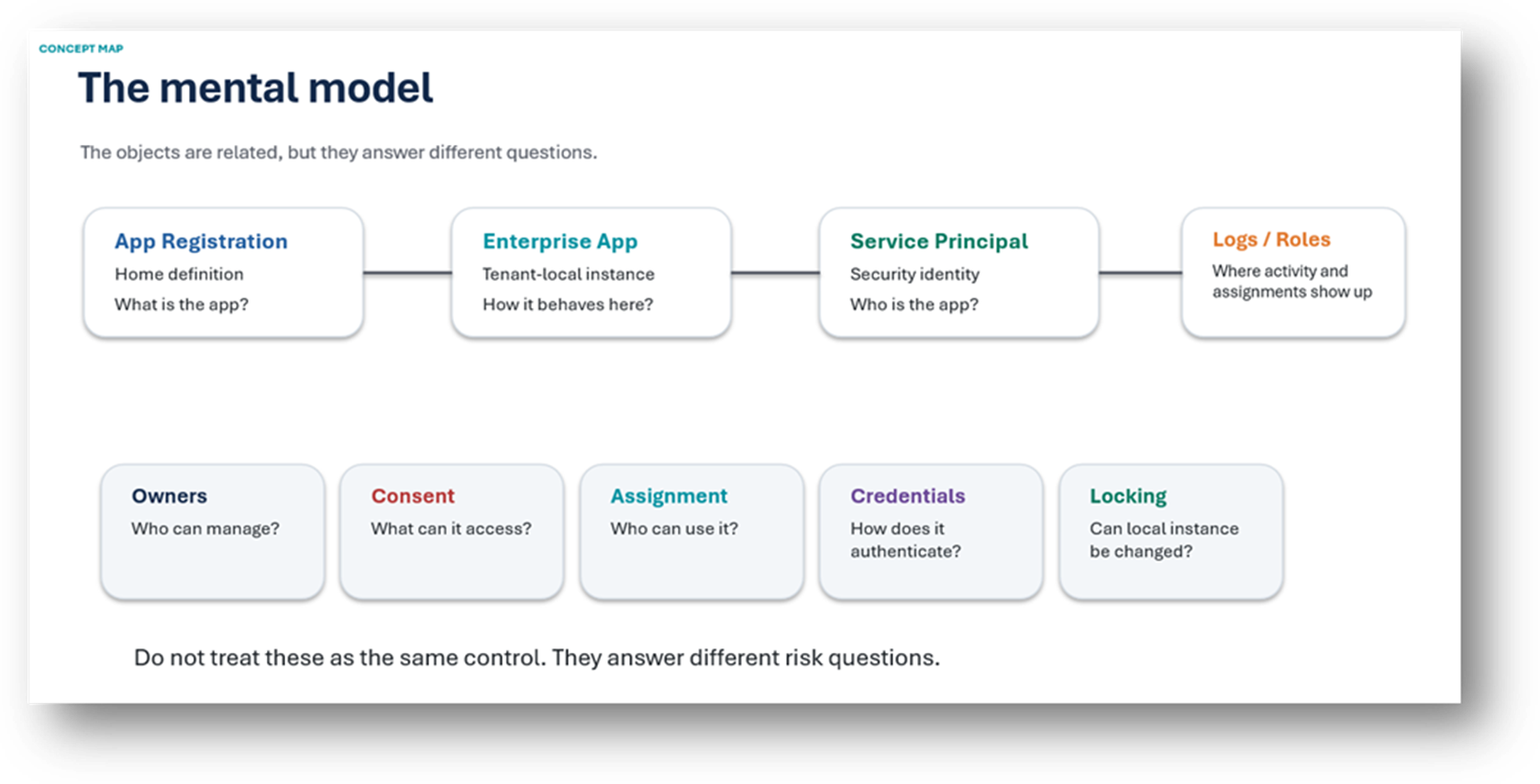
A practical engineering guide to owners, assignment, consent, credentials and ...
Read More

-
19/05/2026
Domain migrations in Microsoft 365 are rarely as simple as shifting email ...
Read More

-
12/05/2026
Over the past 10 to 15 years, Microsoft 365 has fundamentally reshaped how ...
Read More

-
07/05/2026
Yesterday we had an all company meeting and I thought it would be cool to kick ...
Read More

-
07/05/2026
Planning a tenant-to-tenant migration? Talk to us
Read More
-
31/03/2026
In tenant-to-tenant (T2T) and Google-to-Microsoft 365 migration projects, ...
Read More

-
27/03/2026
You’d think this would be easy and not an uncommon request. There are genuine ...
Read More
-
23/03/2026
Managing Google to Microsoft Migration with GAM7 and PowerShell
Read More
-
16/03/2026
When a user leaves an organisation in Microsoft 365, administrators have ...
Read More
