



-
 Conrad Murray
-
 18 December, 2019
Overview
In case you hadn’t noticed, we here at Nero Blanco do a lot of migrations. We are fully immersed in tenant-to-tenant migrations these days and we are always seeing and learning interesting issues. Like Microsoft Teams Channels that have been renamed in the Team itself.
Most people now by now that a Team is made up of:
- The Teams wrapper – obviously
- An Office 365 Unified Group
- The Owners and Members of this group are the Owners and Members of your Team
- A SharePoint Library (Template = GROUP#0)
- Each Teams Channel is represented by a folder in the SharePoint site
- Private Channels get their own thing going on. Each private channel has its own SharePoint site collection. Template = TEAMCHANNEL#0
- OneNote notebook
- A Shared Mailbox
- RecipientTypeDetails: GroupMailbox
- This is also where Channel conversations are stored
- They are actually written to the Azure Chat service first then async’d to Teams
- User to User personal chat outside of a Team is saved in a hidden folder in your OWN mailbox “Conversation History\Teams Chat”
Renamed Channels in Teams
So whats the story with renaming a channel. No problems right?
Actually in day to day business, no problem at all. In fact this ugly problem only raises it’s head when you try to migrate a Team from one tenant to anther.
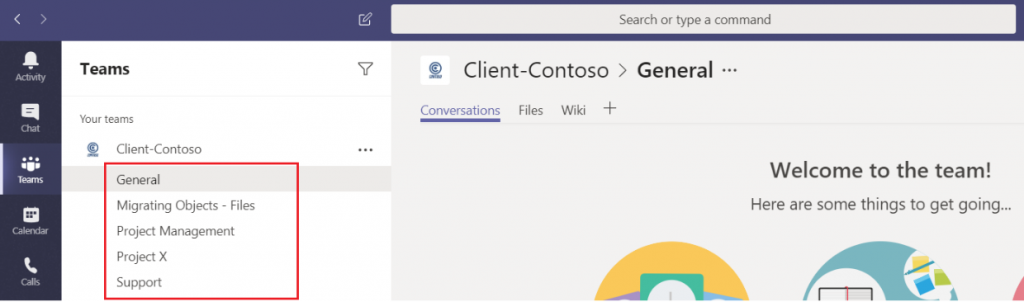
In normal operation inside of Microsoft Teams you can create Channels.
Figure 1 Channel Names
When you create a Channel, it creates a corresponding SharePoint folder structure like this: (so far, so good)
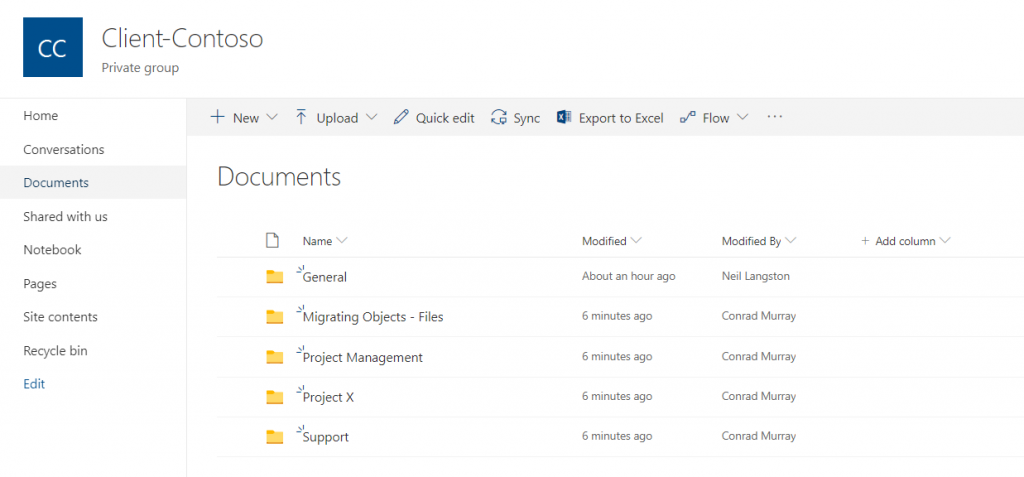 Figure 2 Corresponding SharePoint Folder Names
Editing the channel – aka Channel renames
You can also delete, rename channels and tweak the channel settings, assuming of course that you have the correct permissions, but renaming channels presents its own issues later down the line.
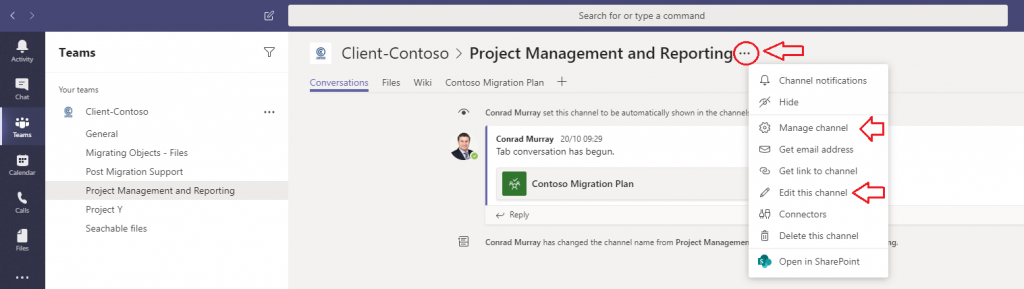 Figure 3 Edit this channel
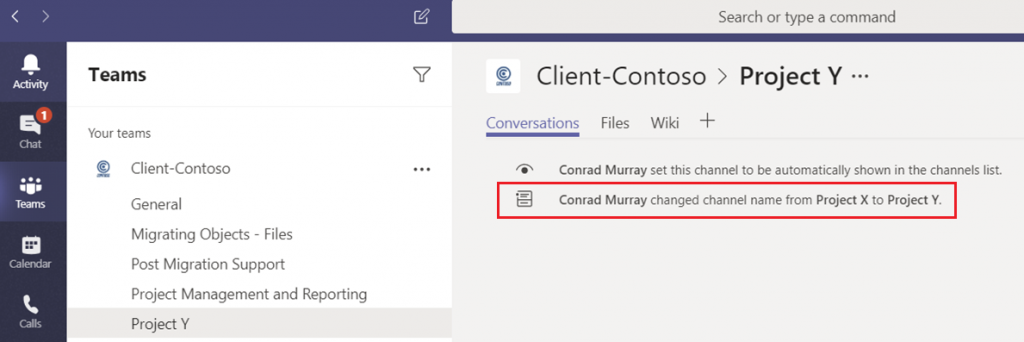 Figure 4 User has renamed channel
When a user RENAMES a channel, the corresponding channel folder in the SharePoint site is NOT renamed. (Although Microsoft Teams does seem to know about the link and continues to function perfectly in the home tenant)
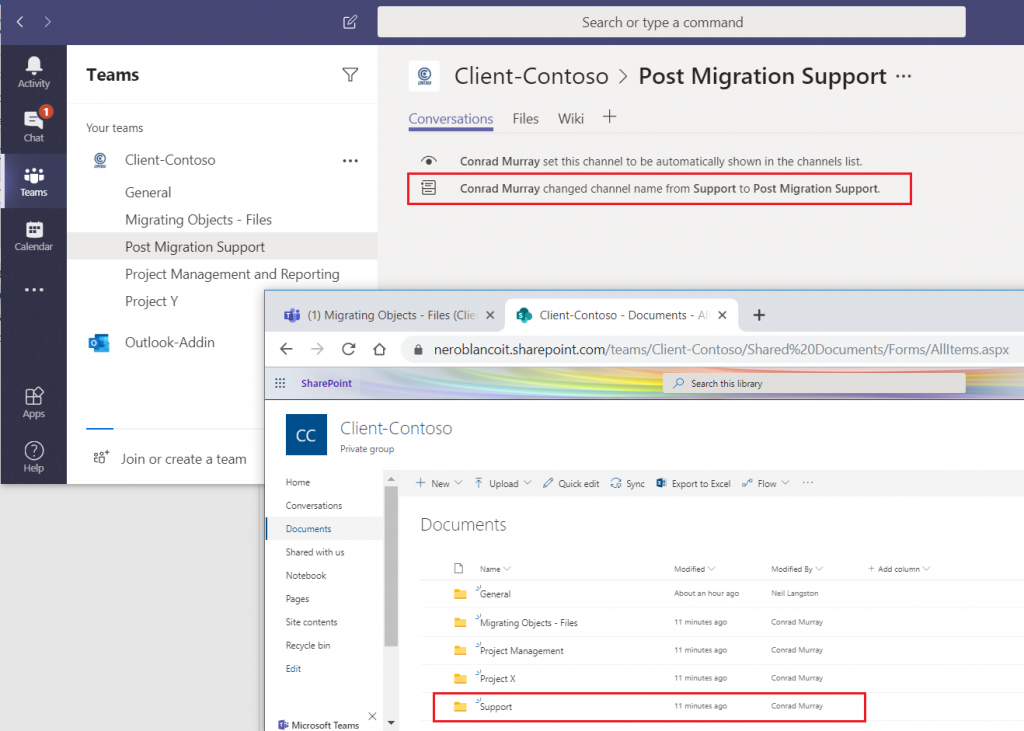 Figure 5 Renamed Channel in SharePoint
Migration
Mismatch
Fast forward to that tenant-to-tenant migration and now at this point you now have a mismatch. This is because the source SharePoint folders were never renamed and the renamed channels are now created as the authoritative folders in the target on the migration tool’s first pass because it uses the current channel name to build the target Team structure initially.
The second pass of the migration tool does the files to files SharePoint data migration, and this is where the old channel name will be created and used.
Some migration tools will do this in a different order, but essentially is is the SharePoint migration that uses the underlying folder structure.
So now you have:
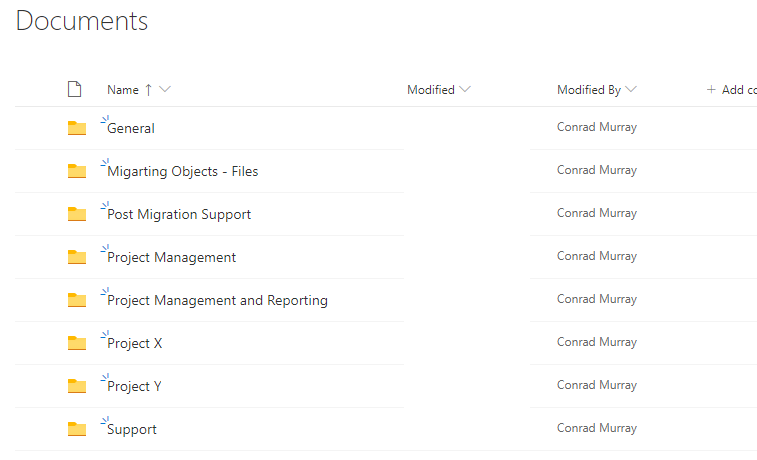 Figure 6 Multiple SharePoint Folders for Team
Where are my files?
If you click on the Files tab for your newly migrated channel you would expect to see your Files and Folders present right? but suddenly they are not:
Source Teams Files tab
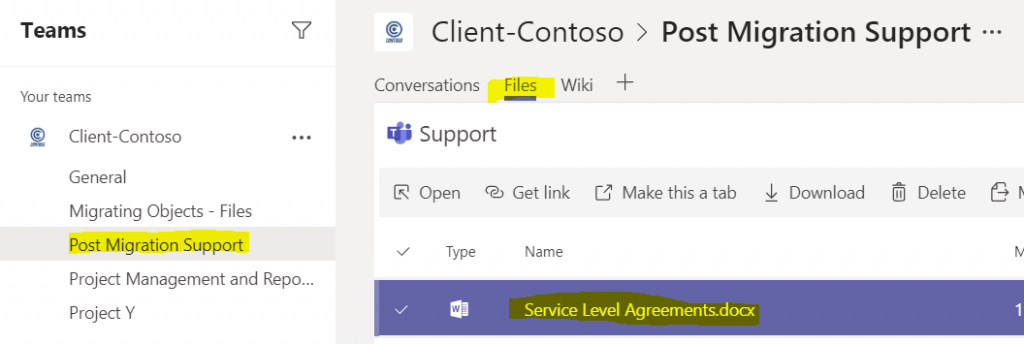
Target Teams Files tab
No files???
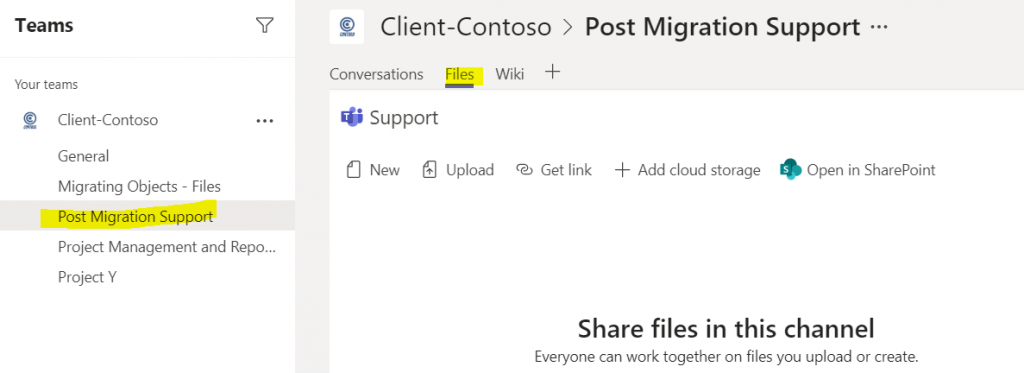 Where are my files?
But the files ARE in the target SharePoint site – in the old folder name:
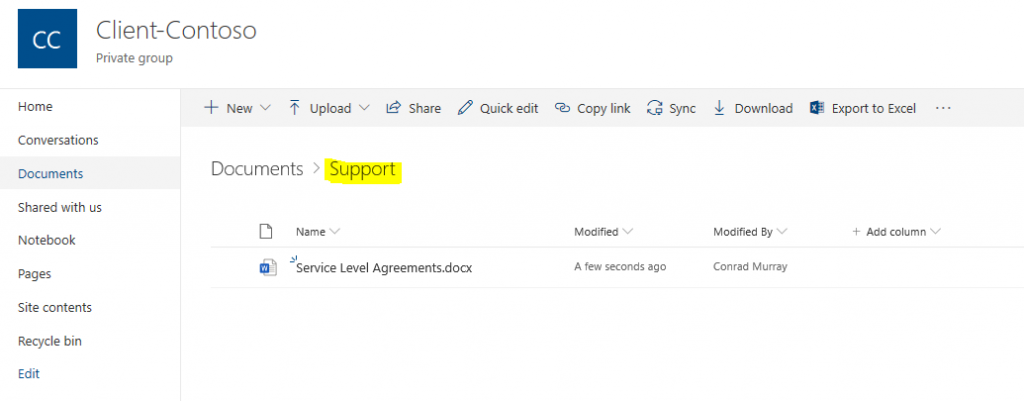 Figure 7 Files in wrong folder / channel
How to Resolve Renamed Channels
HINT: An easy way to see the old and new names is to go to the source Team and look at the Files tab and the legacy channel name will be present
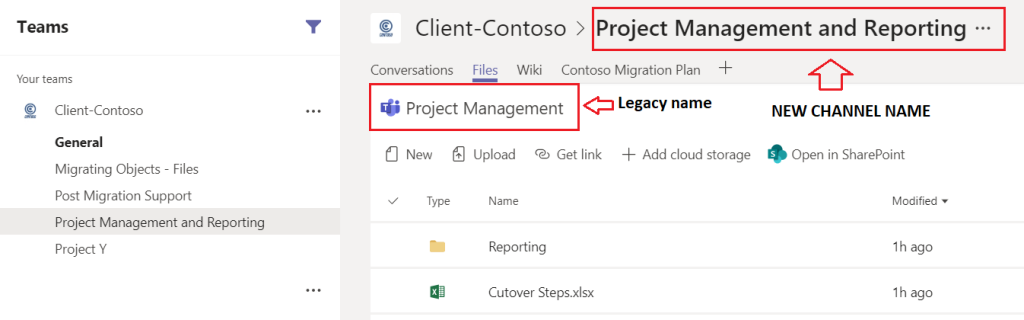 Figure 8 Old Name, New Name
Method 1: RECOMMENDED. Move the SharePoint Content
This is the recommended and preferred approach because all the channel conversation will have been migrated into the new Channel, so better to move the files to the new Channel
Move all the files in SharePoint from Support to “Post Migration Support”
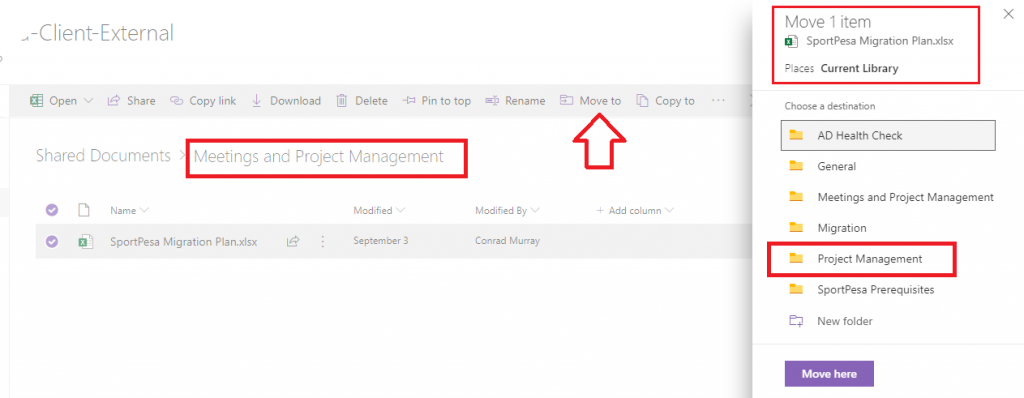 Figure 9 SharePoint “Move to”
Method 2: Rename the SharePoint Folders
Open your Team in SharePoint, by selecting the files tab and choosing “Open in SharePoint”
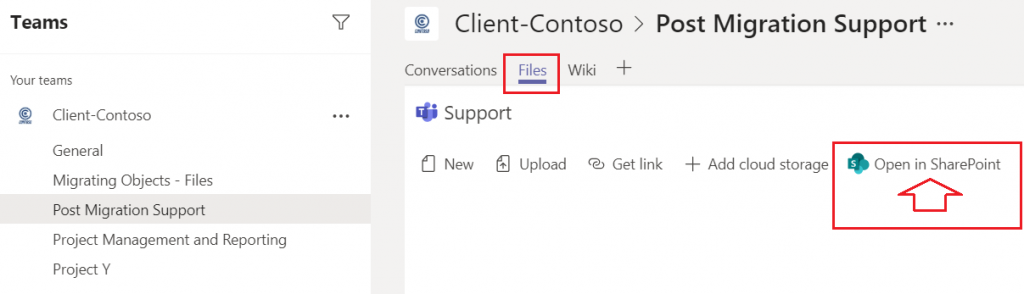
Find the empty folder that currently has the new Channel name and temp rename it to something else like: [folder name]_new
NB- It is unlikely to be empty though in Teams, as it almost certainly contains the migrated conversation. Some tools will have added an HTML file here, and the conversation is directly in this channel
e.g.
- “Post Migration Support” becomes
- “Post Migration Support_NEW”

Then rename the original folder to the new channel name
E.g.
- “Support” becomes
- “Post Migration Support”
Leaving the correct match.

(*you could then delete “Post Migration Support_NEW” assuming it has nothing in it – but this might be unlikely per above)
This will relink the Teams CHANNEL with the SharePoint Folder

Conrad Murray
Conrad Murray is a Microsoft Certified IT consultant working in IT for over 20 years specialising in the Messaging arena and in particular Office 365 and previously Microsoft Exchange On-Premises and IBM Domino. Working with like minded colleagues now delivering very large scale complex migrations from Office 365 to Office 365 (tenant to tenant), Lotus Notes and On-Premises Microsoft Exchange to Office 365.
News & Insights
Trusted insights on technology and innovation to power your business growth.

-
 03/06/2026
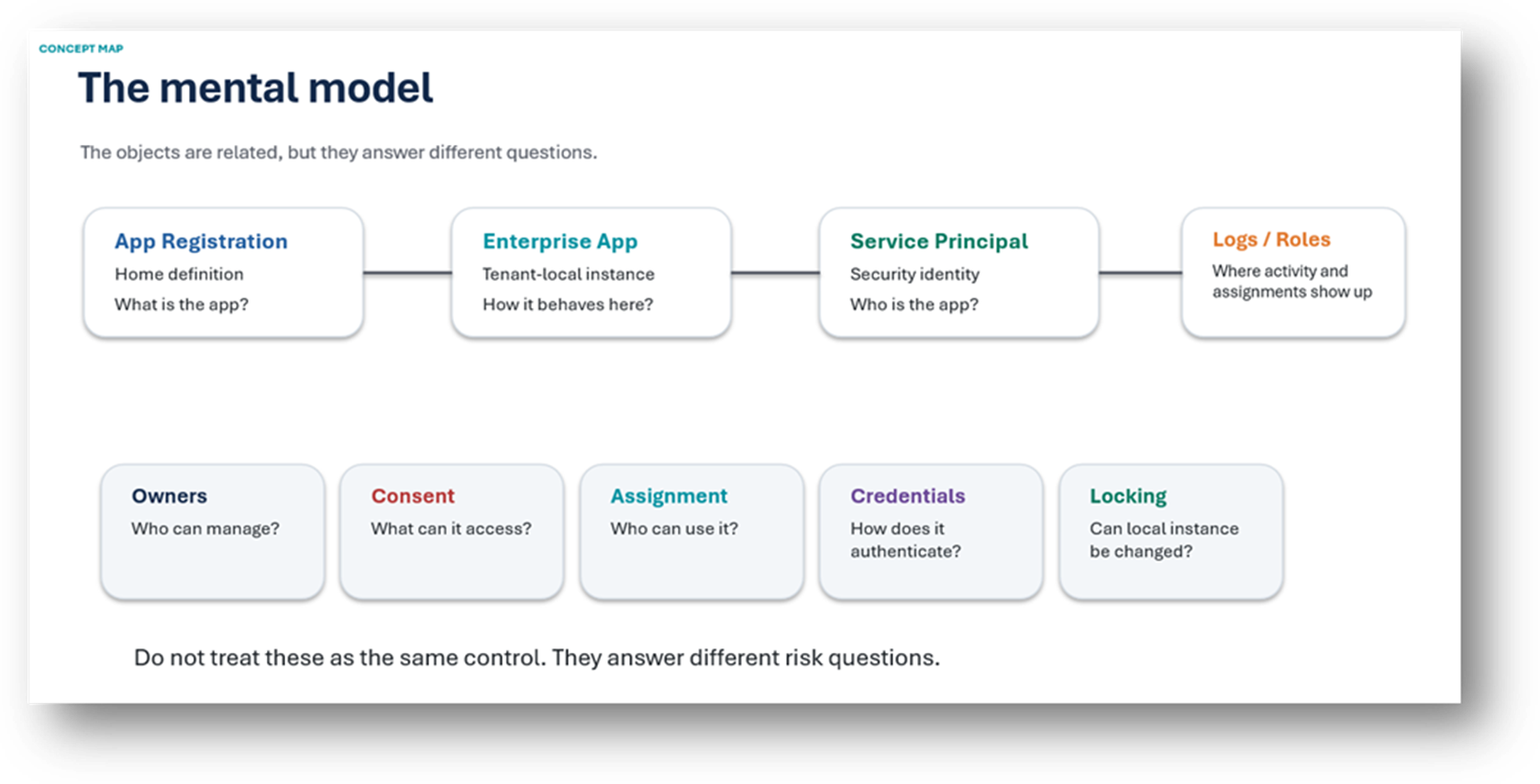
A practical engineering guide to owners, assignment, consent, credentials and ...
Read More
-
19/05/2026
Domain migrations in Microsoft 365 are rarely as simple as shifting email ...
Read More
-
12/05/2026
Over the past 10 to 15 years, Microsoft 365 has fundamentally reshaped how ...
Read More

-
07/05/2026
Yesterday we had an all company meeting and I thought it would be cool to kick ...
Read More

-
07/05/2026
Planning a tenant-to-tenant migration? Talk to us
Read More
-
31/03/2026
In tenant-to-tenant (T2T) and Google-to-Microsoft 365 migration projects, ...
Read More

-
27/03/2026
You’d think this would be easy and not an uncommon request. There are genuine ...
Read More
-
23/03/2026
Managing Google to Microsoft Migration with GAM7 and PowerShell
Read More
-
16/03/2026
When a user leaves an organisation in Microsoft 365, administrators have ...
Read More
