



-
 Conrad Murray
-
 28 May, 2021
Following on from this post:
Office 365 Migrations – What happens to Outlook Meetings with embedded Teams URLs? – Nero Blanco
We developed a tool to strip out Teams info from Calendar invites, so that new Teams info could be added back in (big issue when migrating to a new tenant (see above)
Remove Microsoft Teams conferencing information from meeting – Nero Blanco
Native Feature
Well, it’s almost like Microsoft were reading our blogs because now you can do this natively in Outlook, although they have made it somewhat half hidden. Not sure if this by accident or on purpose.
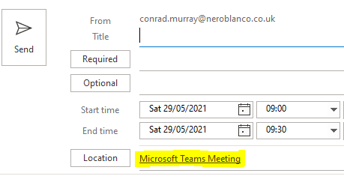
When you create a new meeting in Outlook many of you may have noticed that it defaults to putting in a Teams meeting as soon as you hit “Invite Attendees”.

This is a tad annoying if you are A) meeting in person B) using another meeting tool C) it’s just a personal invite like even meeting for lunch.
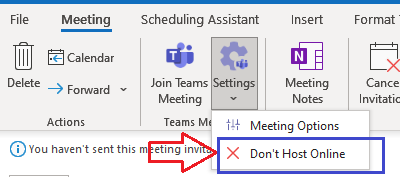
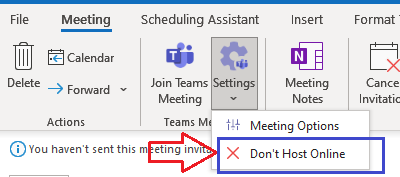
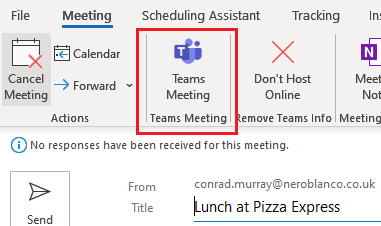
You can at this point just bail out and use the “Don’t Host Online” option from the new Teams Settings cog wheel. If you haven’t seen this before you are probably unaware of it, especially as you have to click the drop down to see it.
However, after you send the invites, that option disappears when you go back to edit it.
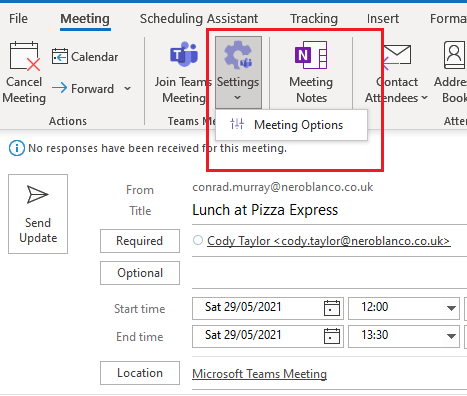
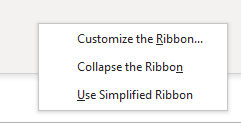
However, you can get it back reasonably easily, by customizing your Outlook ribbon for the Appointment form. Start an invite (you don’t need to save or send), right click anywhere on the ribbon and choose “Customize the Ribbon”
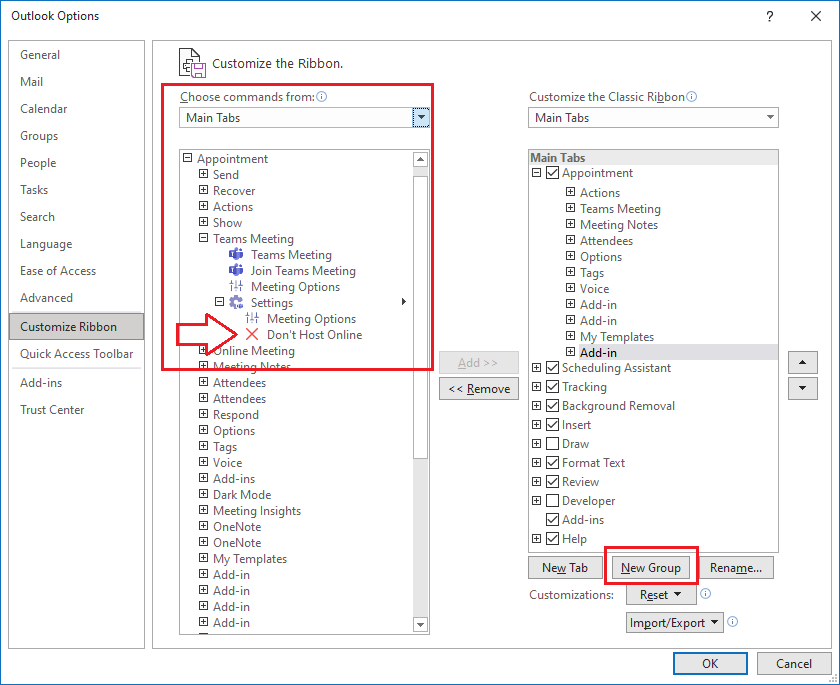
Choose commands from: Main Tabs\Appointment\Teams Meeting\Settings and find “Don’t Host Online”. On the right hand side under Customize the Classic Ribbon you need to click New Group
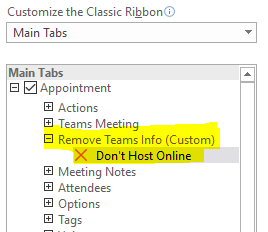
Right click it and rename. Give it a meaningful name and move it up to under Teams Meeting. Drag over from the left the “Don’t Host Online” option
OK your way out.
Now go find a meeting where you are the Chairperson and you will see it on the ribbon.
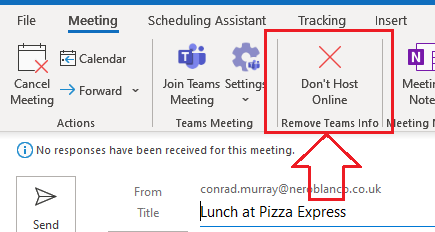
Click on it, and voila, Teams stuff gone. A quick save (CTRL+S) to be sure. Now you can see Teams Info is lit up again if you do need to add back Teams Meeting information after a tenant to tenant migration – or just wanted it gone.
Remember to send the update (NOT Cancel Meeting!)

Conrad Murray
Conrad Murray is a Microsoft Certified IT consultant working in IT for over 20 years specialising in the Messaging arena and in particular Office 365 and previously Microsoft Exchange On-Premises and IBM Domino. Working with like minded colleagues now delivering very large scale complex migrations from Office 365 to Office 365 (tenant to tenant), Lotus Notes and On-Premises Microsoft Exchange to Office 365.
News & Insights
Trusted insights on technology and innovation to power your business growth.

-
 03/06/2026
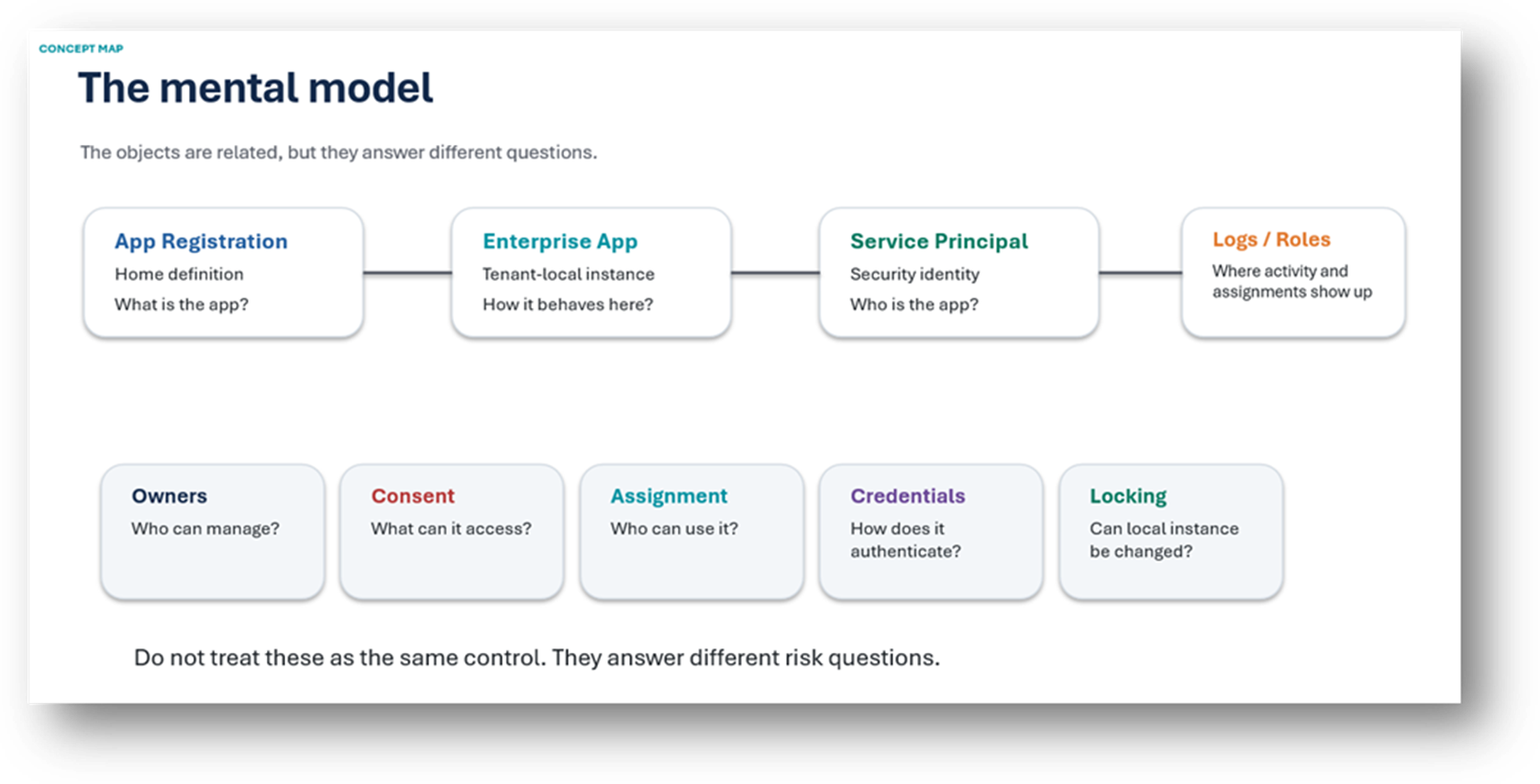
A practical engineering guide to owners, assignment, consent, credentials and ...
Read More
-
19/05/2026
Domain migrations in Microsoft 365 are rarely as simple as shifting email ...
Read More
-
12/05/2026
Over the past 10 to 15 years, Microsoft 365 has fundamentally reshaped how ...
Read More

-
07/05/2026
Yesterday we had an all company meeting and I thought it would be cool to kick ...
Read More
-
07/05/2026
Planning a tenant-to-tenant migration? Talk to us
Read More
-
31/03/2026
In tenant-to-tenant (T2T) and Google-to-Microsoft 365 migration projects, ...
Read More
-
27/03/2026
You’d think this would be easy and not an uncommon request. There are genuine ...
Read More
-
23/03/2026
Managing Google to Microsoft Migration with GAM7 and PowerShell
Read More
-
16/03/2026
When a user leaves an organisation in Microsoft 365, administrators have ...
Read More
