



-
 Neil Langston
-
 29 September, 2020
Update May 2021: This tool has now been removed as there are built in methods in Outlook to achieve this. See this article Remove Teams Info from Calendar Invite – Don’t Host Online – Nero Blanco
Is your “Join Teams Meeting” button not working in your calendar?
Has your organisation going through or completed a migration from one M365 tenant to another?
This generally involves copying (migrating) all the emails, calendar and contacts from the source to the target so the user can hit the ground running with their ‘new’ Outlook, executing these type of projects is Nero Blanco’s forte.
One of the challenges with such email can calendar migrations, is that now all the meetings which were created with MS Teams conferencing information from the old tenant will no longer work for the chair & recipients, internal and external in the new tenant.
Conrad wrote up a great article explaining the technical reasoning for this issue.
It can be a pain having to re-create all your meetings with the correct meeting patterns, attachments, participants and recipients. So we have developed an easy Outlook add-in to help. The add-in will simply remove the hidden Teams conference identifiers or attributes in the meeting, so that the native Outlook button “Join Teams Meeting” is re-surfaced for users to use.
You will need to contact us at team@neroblanco.co.uk to purchase a license for this add-in. Either individual or domain use.
We can provide you a trial license for testing, once you have a license follow the steps below to enable it in Outlook. Once you have a license for your entire estate, you can deploy the add-in to all your users without them having to follow any of the steps below
Navigate to the “Get Add-ins” in Outlook on the ribbon.
Then search for “Remove Teams Info”
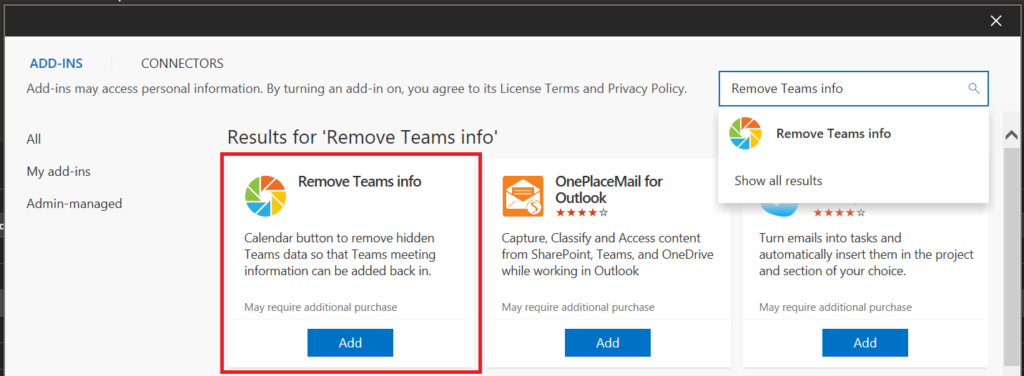
Click add. You may get a consent screen.
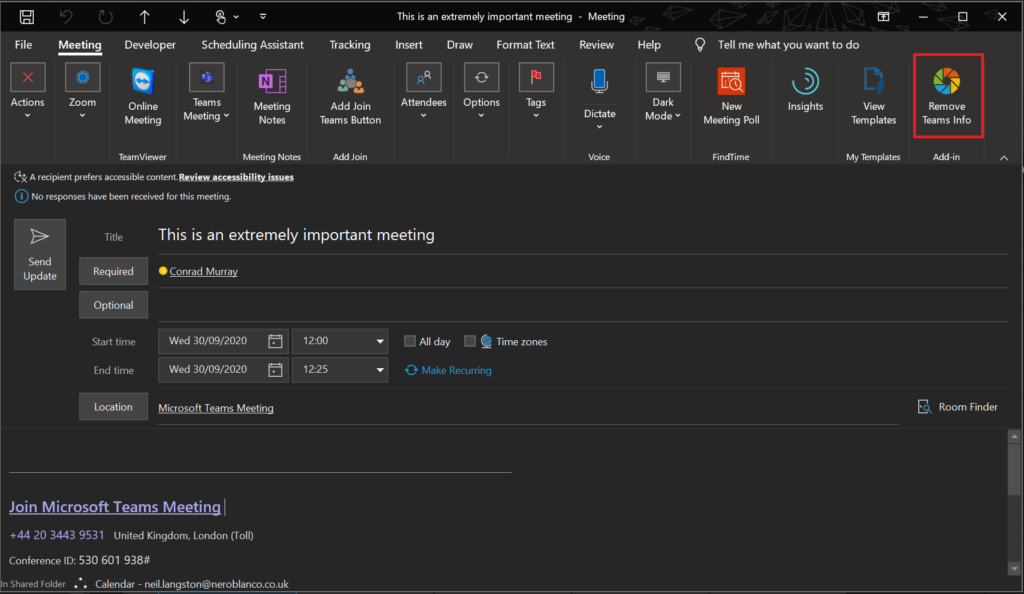
When you find a meeting with “Join Microsoft Teams Meeting” text or a button to say “Join Team Meeting” which doesn’t work…

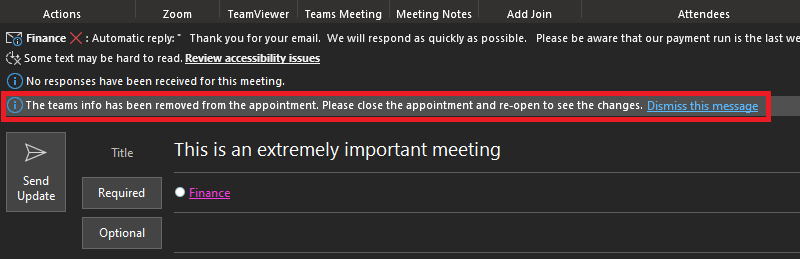
You can remove this text and hidden attributes using this newly added button “Remove Teams Info” in the ribbon.
Once you have clicked the button you will see the following message
Close the meeting, (you may need to wait for Outlook-local to sync to the server if you’re using cached mode. As we have to make the change direct on the server via EWS)
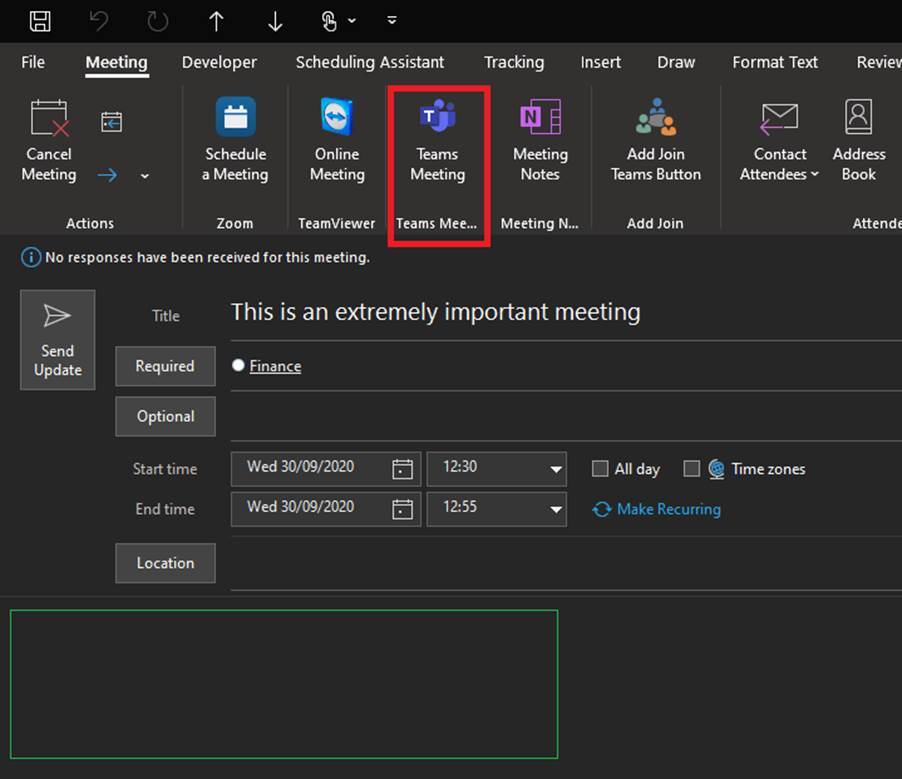
When you open again, you can re-create the meeting with your tenant “Teams Meeting” information, and the common text is also removed.
We’ve love some feedback on the tool. We are also considering enhancing it for Zoom or Cisco applications too.

Neil Langston
News & Insights
Trusted insights on technology and innovation to power your business growth.

-
 03/06/2026
A practical engineering guide to owners, assignment, consent, credentials and ...
Read More
-
19/05/2026
Domain migrations in Microsoft 365 are rarely as simple as shifting email ...
Read More
-
12/05/2026
Over the past 10 to 15 years, Microsoft 365 has fundamentally reshaped how ...
Read More

-
07/05/2026
Yesterday we had an all company meeting and I thought it would be cool to kick ...
Read More

-
07/05/2026
Planning a tenant-to-tenant migration? Talk to us
Read More
-
31/03/2026
In tenant-to-tenant (T2T) and Google-to-Microsoft 365 migration projects, ...
Read More

-
27/03/2026
You’d think this would be easy and not an uncommon request. There are genuine ...
Read More
-
23/03/2026
Managing Google to Microsoft Migration with GAM7 and PowerShell
Read More
-
16/03/2026
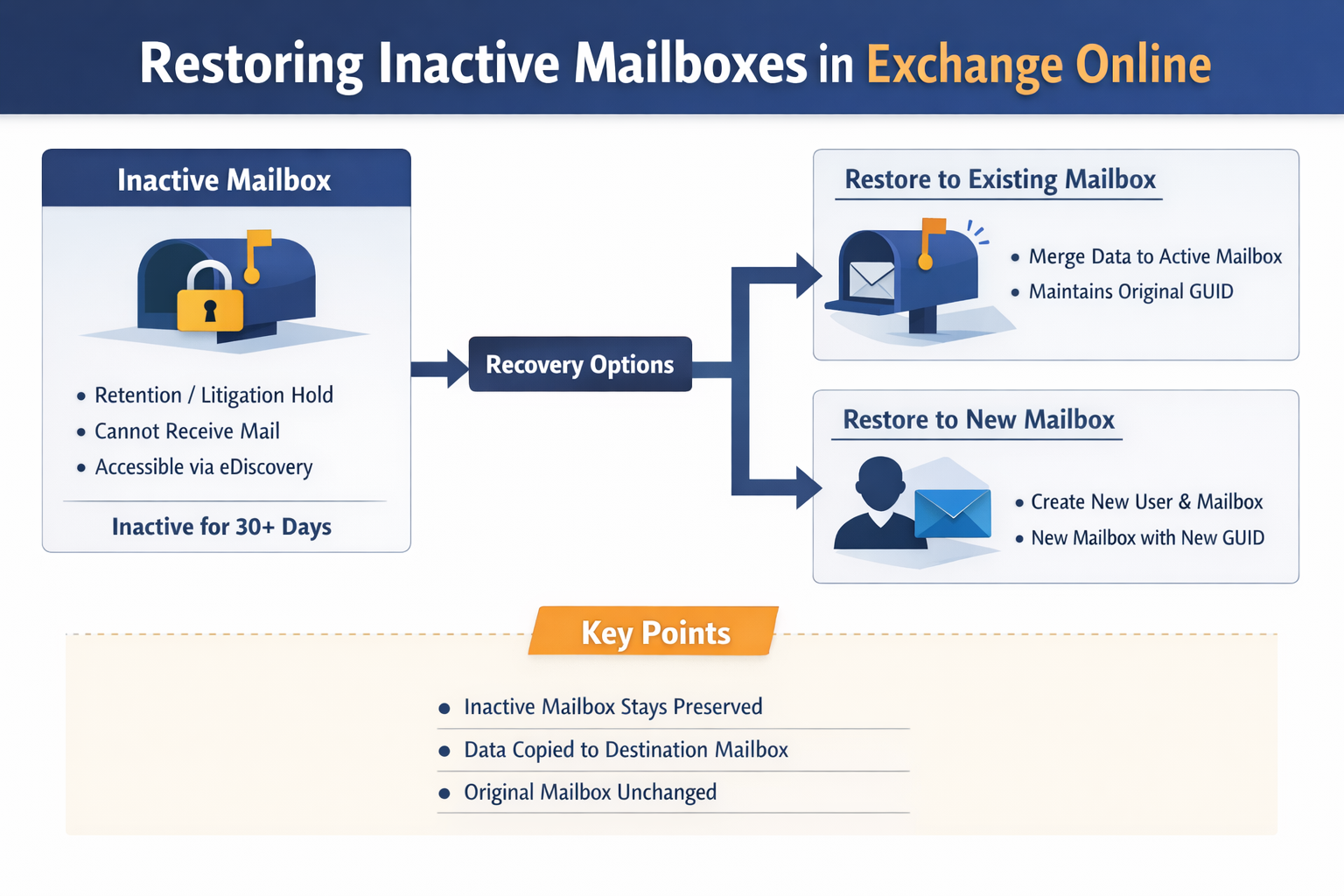
When a user leaves an organisation in Microsoft 365, administrators have ...
Read More
