



-
 Conrad Murray
-
 01 July, 2021
Sounds like an awesome new feature right? Well it is, kind of. Just isn’t well documented or obvious in the GUI how to use it and set one up!
Firstly, you can’t do this from Outlook, you have to use Microsoft Teams.
Step 1 – Create Event
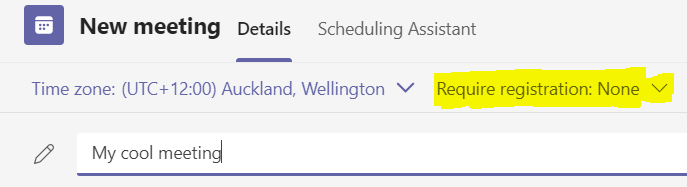
Go to your Calendar, go to top right hand corner and choose New Meeting or New Webinar. You will see the option for Require registration in the ribbon
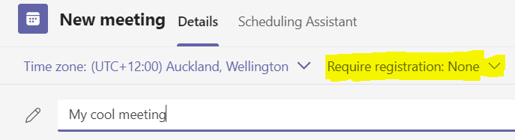
Step 2 – Set Require Registration Option
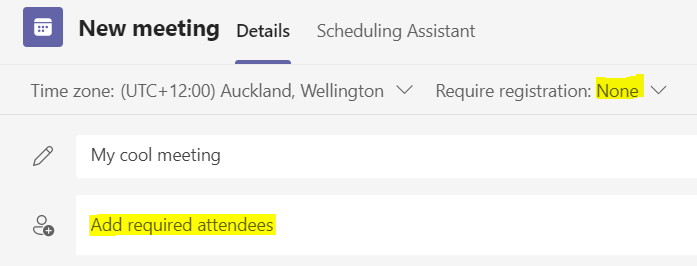
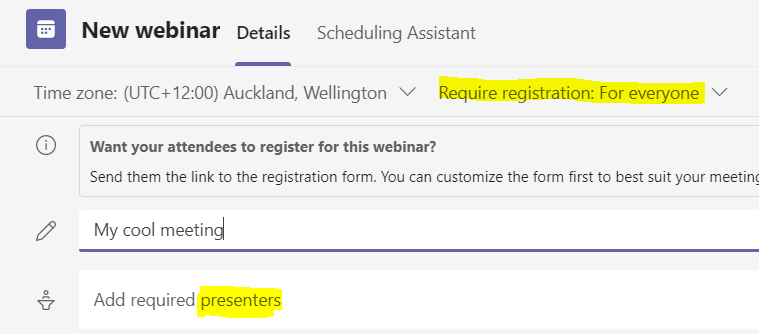
And here’s the trap for new players… Do not add attendees here. Before you require registration you have the “add require attendees” option, but AFTER you require registration, this changes to Add presenters.
It’s very subtle. If you add your people in here, they will just be able to join the event/meetings like plain old normal.
| Before Require Registration | After Require Registration |
| The giveaway is before you require registrations, the list is to Add required attendees | After you set require registration this changes to presenters – Thus, when you add people here they can just join the meeting! |
 |  |
Step 3- Complete registration form, and save URL.

Be sure to view and customize your form. You should populate the Event details Title, add any Speakers and modify any data you want to capture. Default is First name, Last name, Email. You can add your own logo too (which is not sticky / persistent next time you come back to this form)
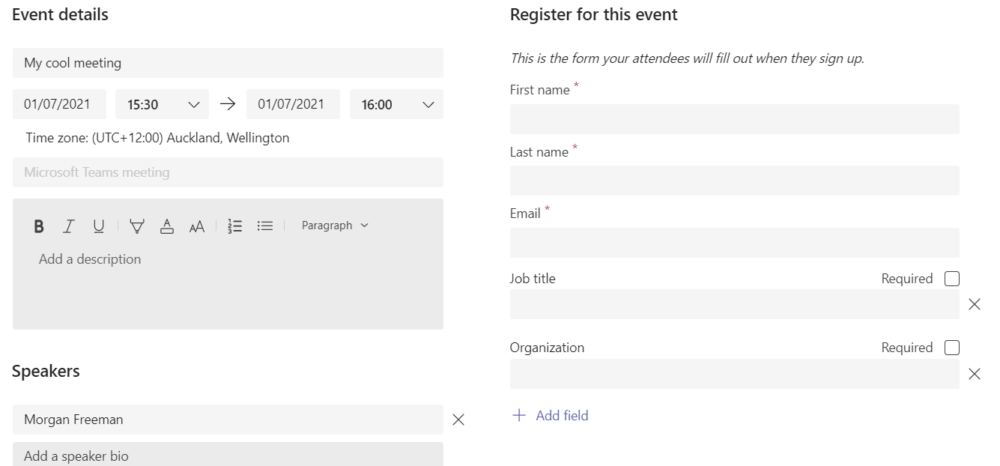
BEWARE: You can set a different start time / end time in here and it is not copied back / reflected to the Event you just created!!
Step 4 – Copy registration link
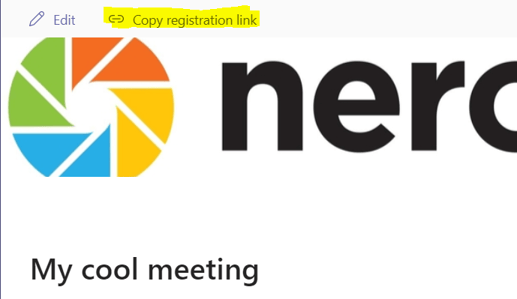
Step 5 – Send (Save your placeholder)
- Send – If you added any presenters and…
- Send – if you didn’t. That way it saves on your Calendar.
Step 6 – Send an Email to the attendees/participants
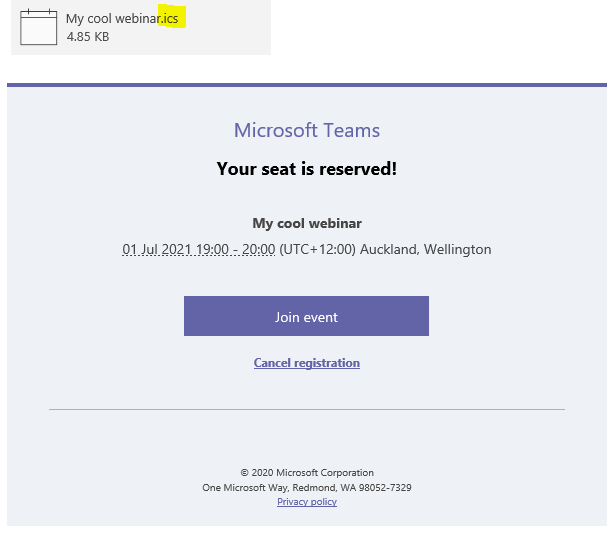
Send your email with blurb and sign-up link. Once an attendee registers, they will receive back an ICS file / Invite to add to their Calendar, and you will see them listed back in the meetings. NOTE: There is nothing to stop attendees registering more than once!
Attendees receive back a confirmation with an ICS file that adds the event to their Calendar
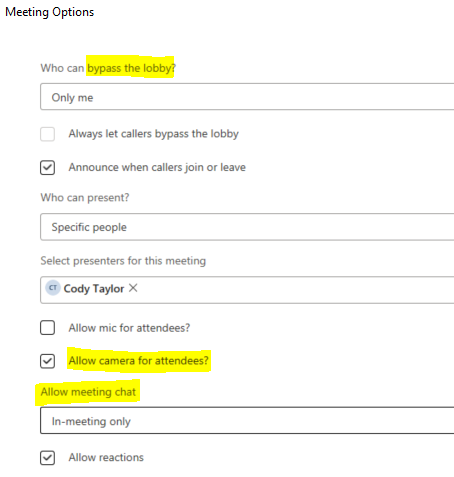
Step 7 – Set Meeting Options
Open your event back up in Outlook now or Teams and set the Meeting options
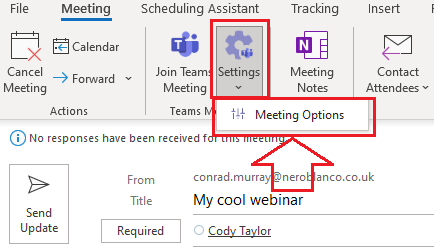
Consider setting Who can bypass the lobby, Mic & Camera for attendees and how you would like to manage meeting chat. Remember to Save Changes to meeting when prompted!
Step 8 – Check who has registered
Back to Teams, open your event, click on Attendance on the ribbon

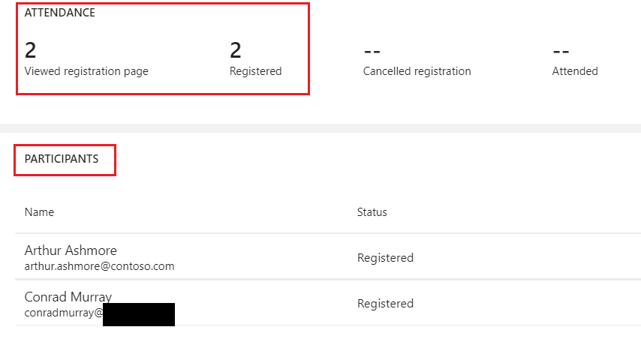
Not as simple and clear as we would like it to be. It’s a bit of a faff, but kind of works!
Good luck.

Conrad Murray
Conrad Murray is a Microsoft Certified IT consultant working in IT for over 20 years specialising in the Messaging arena and in particular Office 365 and previously Microsoft Exchange On-Premises and IBM Domino. Working with like minded colleagues now delivering very large scale complex migrations from Office 365 to Office 365 (tenant to tenant), Lotus Notes and On-Premises Microsoft Exchange to Office 365.
News & Insights
Trusted insights on technology and innovation to power your business growth.

-
 03/06/2026
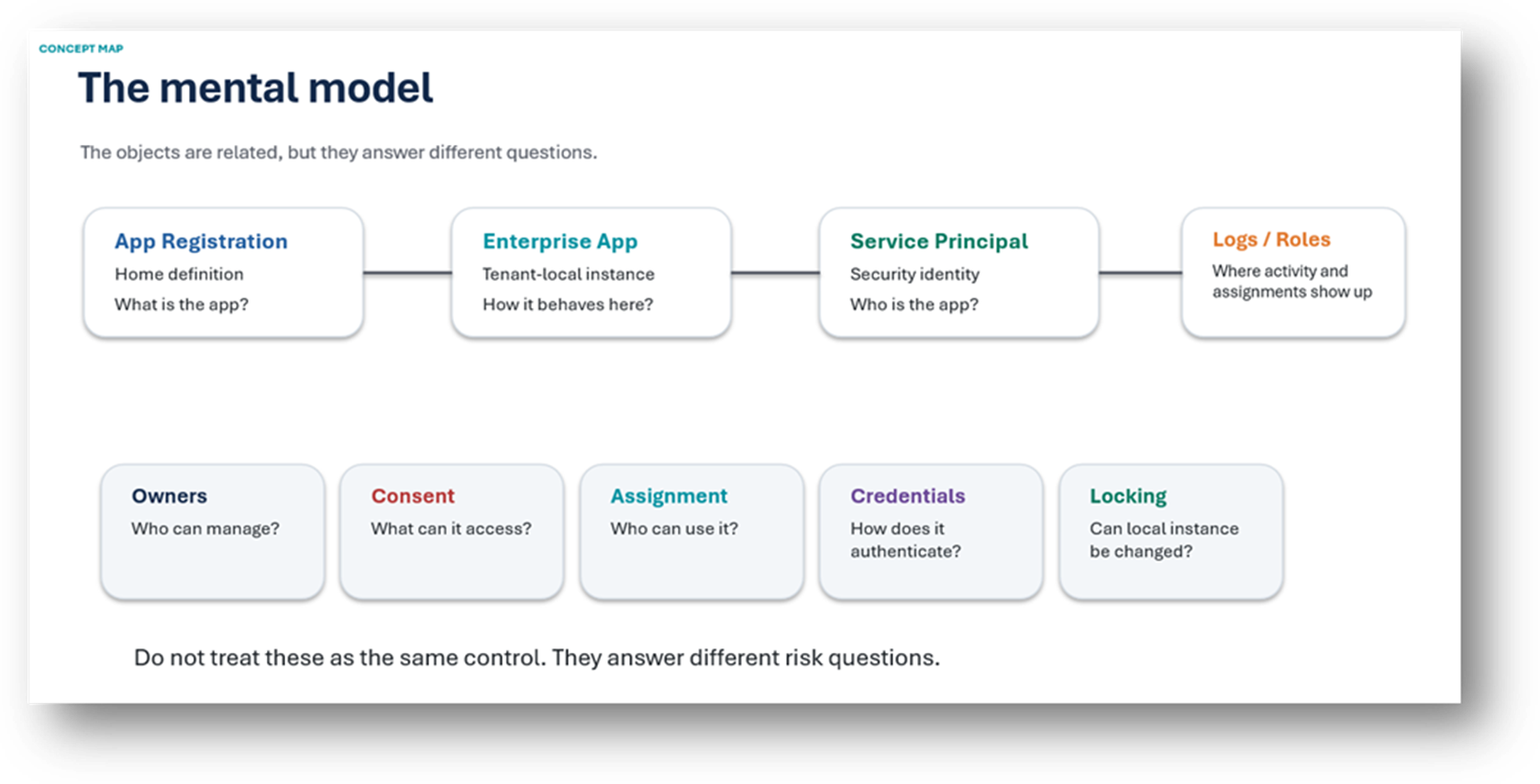
A practical engineering guide to owners, assignment, consent, credentials and ...
Read More
-
19/05/2026
Domain migrations in Microsoft 365 are rarely as simple as shifting email ...
Read More
-
12/05/2026
Over the past 10 to 15 years, Microsoft 365 has fundamentally reshaped how ...
Read More

-
07/05/2026
Yesterday we had an all company meeting and I thought it would be cool to kick ...
Read More
-
07/05/2026
Planning a tenant-to-tenant migration? Talk to us
Read More
-
31/03/2026
In tenant-to-tenant (T2T) and Google-to-Microsoft 365 migration projects, ...
Read More
-
27/03/2026
You’d think this would be easy and not an uncommon request. There are genuine ...
Read More
-
23/03/2026
Managing Google to Microsoft Migration with GAM7 and PowerShell
Read More
-
16/03/2026
When a user leaves an organisation in Microsoft 365, administrators have ...
Read More
