



-
 Conrad Murray
-
 21 June, 2014
Introduction
In the modern messaging world Transport Layer Security has become the norm and given the ease at which Microsoft Exchange is able to achieve this out of the box, organisations quite rightly demand this when they are on Coexistence mode between IBM Domino and Microsoft Exchange.
Up to Domino 8.5.x Domino does not actually do genuine TLS – it actually does HTTPS v3 for Message Transport. Apparently Domino 9 will do TLS natively.
Below I have outlined the steps to Configure Domino 8.5.3 and Exchange 2010 for TLS.
Domino Server Configuration
- Create Domino CSR
- Create Key Ring
- Create Certificate Request
- Sent to CA
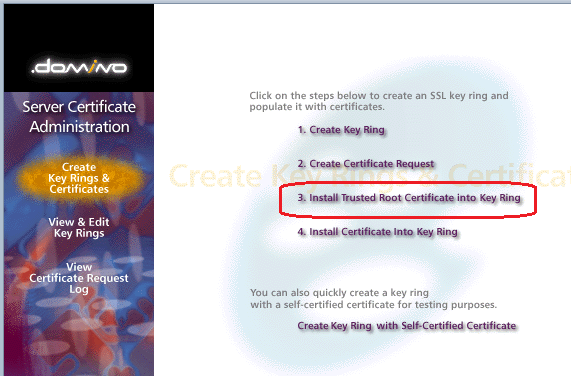
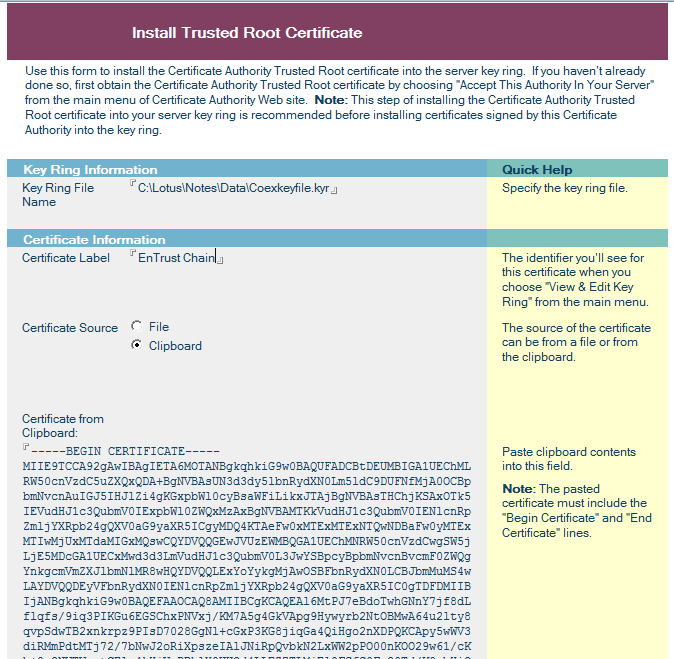
- Install trusted Root Certificate into Key Ring
- View & Edit Key Rings
- View Certificate Request Log
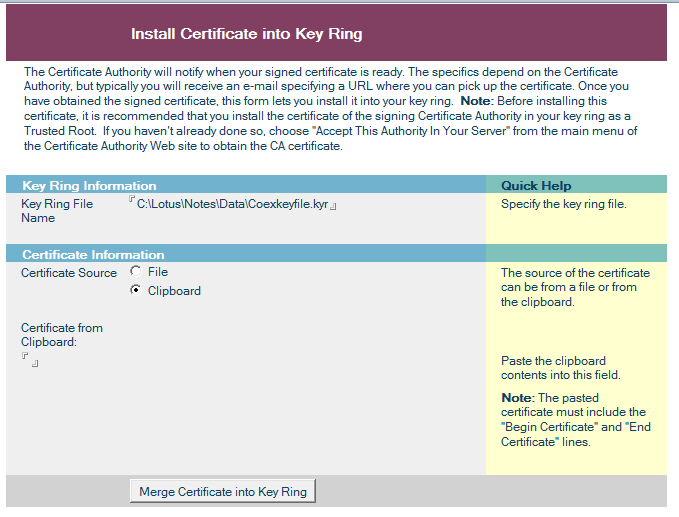
- Install Certificate Into Key Ring
- Configure Domino
- Enable SSL on Domino
- Enable TLS for SMTP Outbound mail
- Enable TLS for SMTP Inbound mail
- Configure notes.ini
- Replicate changes to Domino Environment
- Restart The Router and SMTP tasks
Exchange Server Configuration
- Configure Receive Connectors
- CHECK Config
- Configure Send Connectors
- CHECK Config
Domino Server Configuration
1. Create Domino CSR
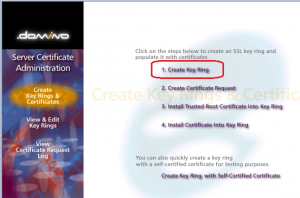
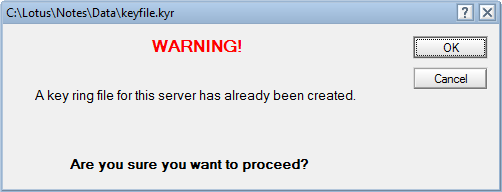
1. Create Key Ring

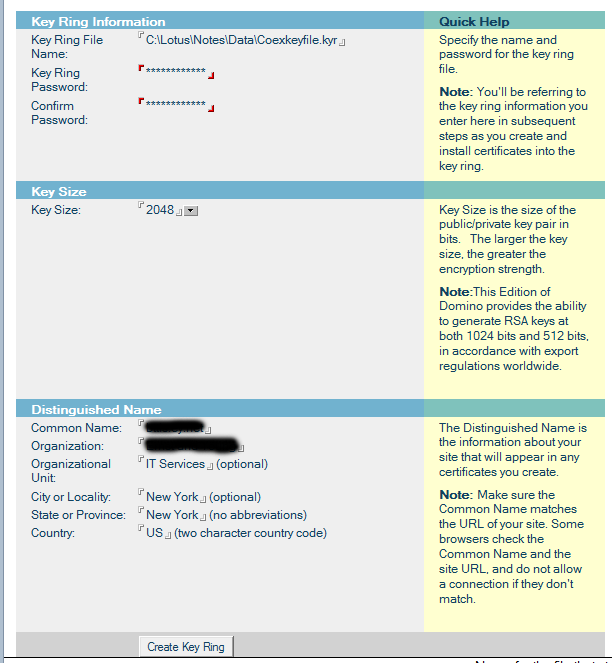
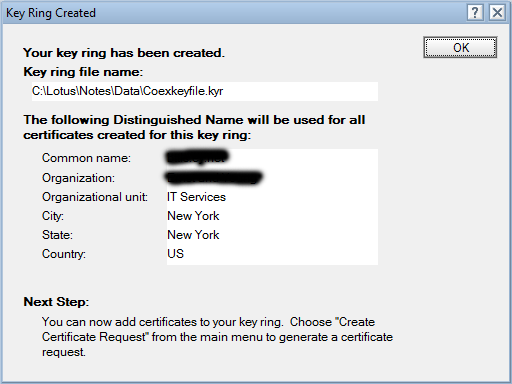
2. Create Certificate Request
—–BEGIN NEW CERTIFICATE REQUEST—–
***************************************************************************
***************************************************************************
***************************************************************************
***************************************************************************
***************************************************************************
***************************************************************************
***************************************************************************
***************************************************************************
***************************************************************************
***************************************************************************
***************************************************************************
***************************************************************************
***************************************************************************
***************************************************************************
***************************************************************************
—–END NEW CERTIFICATE REQUEST—–
Sent to CA
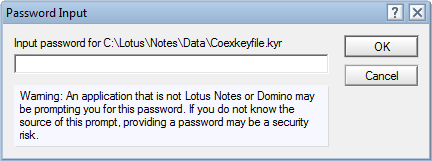
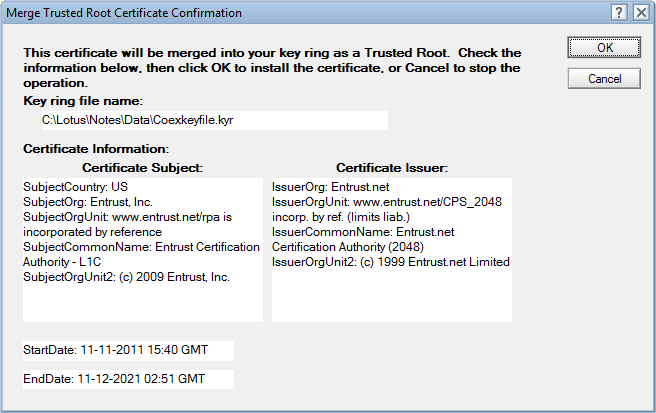
3. Install trusted Root Certificate into Key Ring
 *
*
—–BEGIN CERTIFICATE—–
***************************************************************************
***************************************************************************
***************************************************************************
***************************************************************************
***************************************************************************
***************************************************************************
***************************************************************************
***************************************************************************
***************************************************************************
***************************************************************************
***************************************************************************
***************************************************************************
***************************************************************************
***************************************************************************
***************************************************************************
—–END CERTIFICATE—–
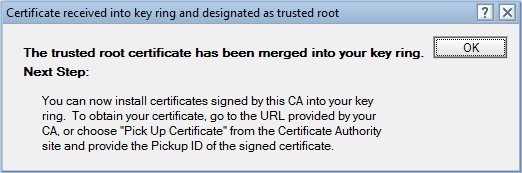
4. View & Edit Key Rings
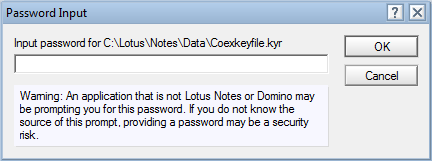
5. View Certificate Request Log
6. Install Certificate Into Key Ring
Configure Domino
Enable SSL on Domino
- Create SSL Cert Request, send to EnTrust, Retrieve CER file, Complete Cert Request
- Save SSL key file name file to Domino Data directory
- Server Document: Server Ports, Internet Ports, SSL key File Name, set SSL ciphers to RC$ 128-bit only (MD5 and SHA-1)
- Restart HTTP Service
- Don’t need HTTPS running for SSL
Enable TLS for SMTP Outbound mail
- Server Document: Server Ports, Internet Ports, Set TCPIP port status to Negotiated SSL
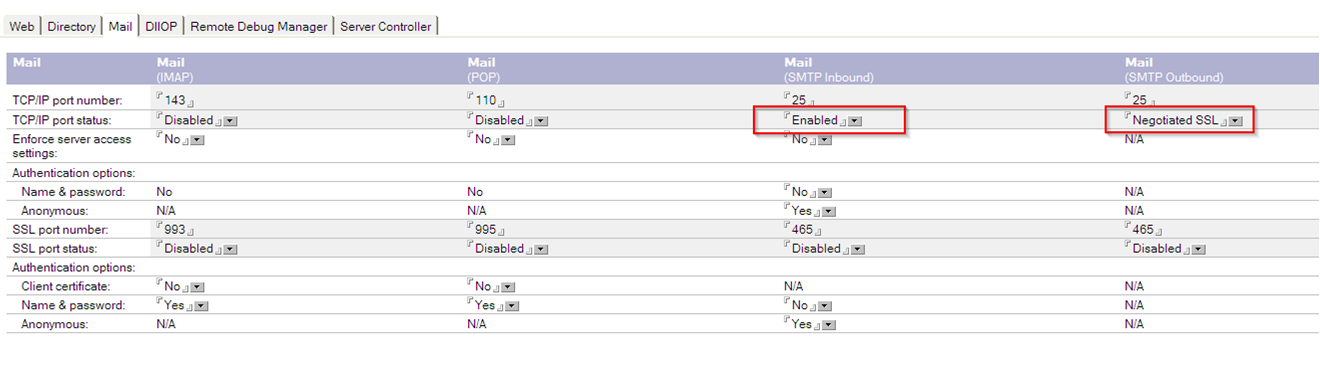
Enable TLS for SMTP Inbound mail
- Server Configuration Document: Router\SMTP, Advanced, Commands and Extensions set SSL negotiated over TCP/IP port: to ENABLED
Configure notes.ini
Check /or set the following notes.ini settings
HTTPJVMMaxHeapSize=64M
- HTTPJVMMaxHeapSizeSet=1
- HTTPDisableMethods=TRACE
- SSL_USE_ADDSESSION2=1
- SSL_SESSION_SIZE=8192
- SSLCipherSpec=0405
Debug Settings
If Anything Goes wrong, use these:
;SMTPClientDebug=0
;SMTPDebug=0
;SMTPDebugIO=0
;SMTPSaveOutboundToFile=1
;SMTPSaveImportErrors=0
;HTTPDebugLogDirectpry=<path>
;HTTPEnabledThreadDebug=1
;HTTPEnablePostDataLogging=1
;HTTPEnableResponseContentLogging=1
;DEBUG_SSL_ALL=1
;TraceSSLHandshake=1
;ReportSSLHandshakeErrors=1
Replicate changes to Domino Environment
- Replicate changes to Domino affected server if necessary
Restart The Router and SMTP tasks
- Stop and start the Domino Router and SMTP tasks
Exchange Server Configuration
Configure Receive Connectors
Get-ReceiveConnector | ? { $_ -like ‘*domino*’ } | Set-ReceiveConnector -RequireTLS $true -ProtocolLoggingLevel Verbose
Get-ReceiveConnector | ? { $_ -like ‘*domino’ } | Set-ReceiveConnector -AuthMechanism Tls -PermissionGroups AnonymousUsers
Get-ReceiveConnector | ? { $_ -like ‘*domino’ } | Add-ADPermission -User “NT AUTHORITY\ANONYMOUS LOGON” -ExtendedRights “Ms-Exch-SMTP-Accept-Any-Recipient”
CHECK Config
Get-ReceiveConnector | ? { $_ -like ‘*domino*’ } | FL Identity,RequireTLS,ProtocolLoggingLevel
Configure Send Connectors
Get-SendConnector | ? { $_ -like ‘*domino*’ } | Set-SendConnector -TlsAuthLevel $null -IgnoreSTARTTLS $false -RequireTLS $true -ProtocolLoggingLevel Verbose
CHECK Config
Get-SendConnector | ? { $_ -like ‘*domino*’ } | FL Identity,TlsAuthLevel,RequireTLS,IgnoreSTARTTLS,ProtocolLoggingLevel
Restart Transport Service
Restart-Service MSExchangeTransport

Conrad Murray
Conrad Murray is a Microsoft Certified IT consultant working in IT for over 20 years specialising in the Messaging arena and in particular Office 365 and previously Microsoft Exchange On-Premises and IBM Domino. Working with like minded colleagues now delivering very large scale complex migrations from Office 365 to Office 365 (tenant to tenant), Lotus Notes and On-Premises Microsoft Exchange to Office 365.
News & Insights
Trusted insights on technology and innovation to power your business growth.
-
 03/06/2026
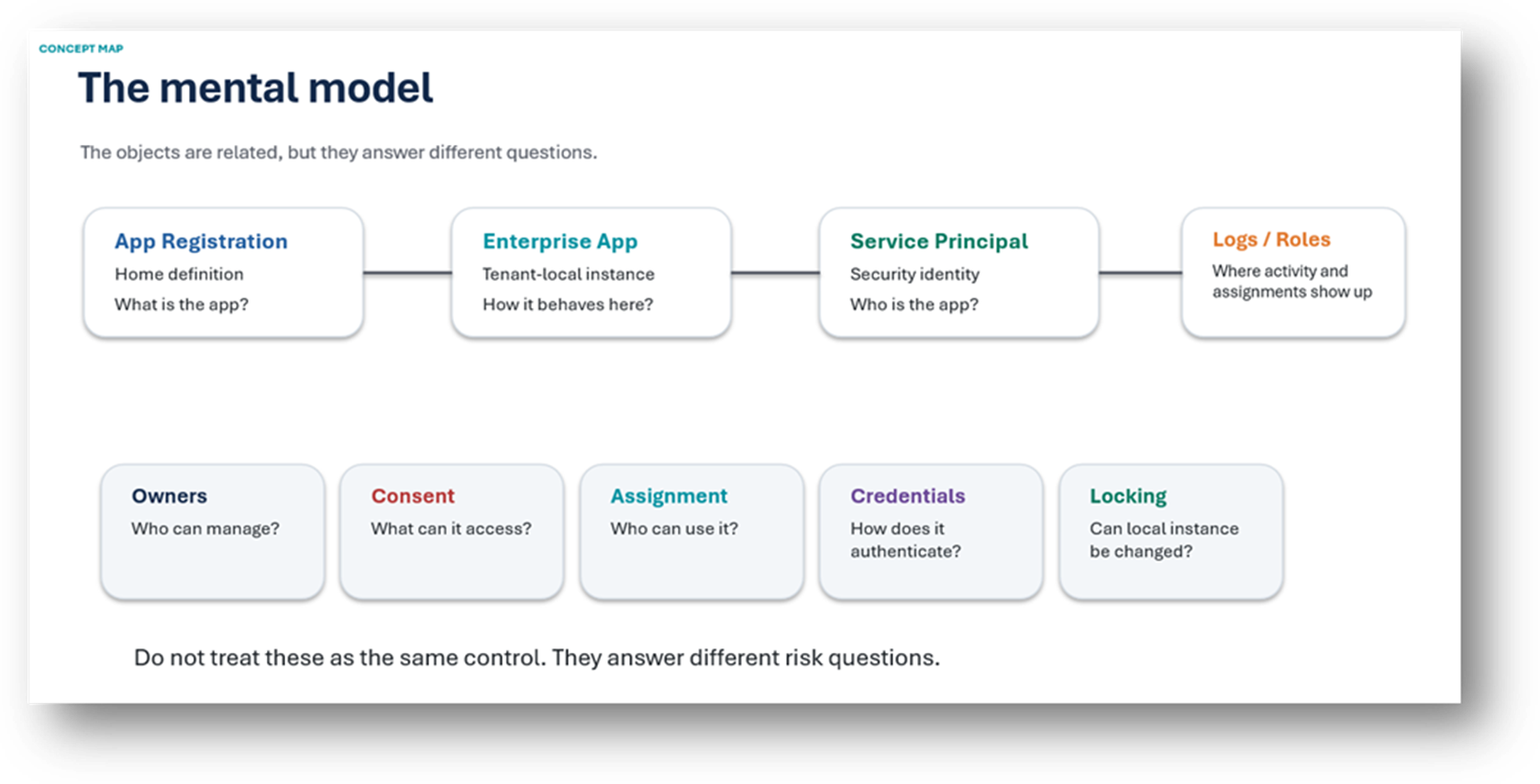
A practical engineering guide to owners, assignment, consent, credentials and ...
Read More
-
19/05/2026
Domain migrations in Microsoft 365 are rarely as simple as shifting email ...
Read More
-
12/05/2026
Over the past 10 to 15 years, Microsoft 365 has fundamentally reshaped how ...
Read More

-
07/05/2026
Yesterday we had an all company meeting and I thought it would be cool to kick ...
Read More
-
07/05/2026
Planning a tenant-to-tenant migration? Talk to us
Read More
-
31/03/2026
In tenant-to-tenant (T2T) and Google-to-Microsoft 365 migration projects, ...
Read More
-
27/03/2026
You’d think this would be easy and not an uncommon request. There are genuine ...
Read More

-
23/03/2026
Managing Google to Microsoft Migration with GAM7 and PowerShell
Read More
-
16/03/2026
When a user leaves an organisation in Microsoft 365, administrators have ...
Read More
