



-
 Twan van Beers
-
 18 October, 2017
While working on DSC for a client I came across the need to use Composite Configurations, however it needed to work with Azure Automation. Microsoft did use to say that Azure Automation DSC does not support partial or composite configurations, however composite ones can actually be wrapped up as a module and imported. After that it works just like any composite configuration in normal DSC.
The trick here is in the words ‘wrapped up as a module’. This sounds daunting but is actually pretty straight forward.
Firstly set up the following directory structure (assuming your module is called myDSCModule and your composite resource is the MMAgent (OMS Agent installation via DSC))
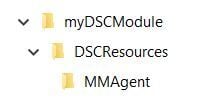
The top level folder will contain the manifest for the module, the bottom level folder will contain the manifest and the PowerShell code for the resource.
Now creating the manifest is pretty simple, create a new file called myDSCModule.psd1 and add the following content
@{ # Version number of this module. ModuleVersion = '1.0.0.0' # ID used to uniquely identify this module GUID = <yourGUID> }Generate a GUID for your module by using PowerShell to execute
[guid]::newguid()Ok so that’s the module, now the resource. We need two files this time, a manifest and the PowerShell code. So let’s start with the PowerShell code. Create a file called MMAgent.schema.psm1 and add your PowerShell code. In my case I amended the standard code to pull the agent from a file share
Configuration MMAgent { param ( [string] $SourcePath = "\\Server\DSCResources$\OMS\MMASetup-AMD64.exe", [string] $LocalPath = "C:\DSCSource\OMS\MMASetup-AMD64.exe" ) $OPSINSIGHTS_WS_ID = Get-AutomationVariable -Name "OPSINSIGHTS_WS_ID" $OPSINSIGHTS_WS_KEY = Get-AutomationVariable -Name "OPSINSIGHTS_WS_KEY" $DSCRESOURCE_PATH = Get-AutomationVariable -Name "DSCRESOURCE_PATH" Service OIService { Name = "HealthService" State = "Running" DependsOn = "[Package]OI" } Package OI { Ensure = "Present" Path = $LocalPath Name = "Microsoft Monitoring Agent" ProductId = "6D765BA4-C090-4C41-99AD-9DAF927E53A5" Arguments = '/C:"setup.exe /qn ADD_OPINSIGHTS_WORKSPACE=1 OPINSIGHTS_WORKSPACE_ID=' + $OPSINSIGHTS_WS_ID + ' OPINSIGHTS_WORKSPACE_KEY=' + $OPSINSIGHTS_WS_KEY + ' AcceptEndUserLicenseAgreement=1"' DependsOn = "[File]OIPackage" } File OIPackage { Ensure = "Present" SourcePath = $SourcePath DestinationPath = $LocalPath } }Now create the manifest file called MMAgent.psd1 and add the following, again generating your own GUID
@{ # Script module or binary module file associated with this manifest. RootModule = 'MMagent.schema.psm1' # Version number of this module. ModuleVersion = '1.0.0' # ID used to uniquely identify this module GUID = '<yourGUID>' }Now you need to take the myDSCModule folder and compress it into a zip file and then upload it into Azure as a DSC Module. After that you can simply call
Import-DscResource -ModuleName 'myDSCModule' MMAgent myMMAgent{}to consume the resources within your module as composite DSC Resources
That’s it… Now if only Microsoft could have documented it step by step like this 🙂

Twan van Beers
Twan is a senior consultant with over 30 years of experience. He has a wide range of skills including Messaging, Active Directory, SQL, Networking and Firewalls. Twan loves to write scripts and get deep and dirty into debugging code, in order to understand and resolve the most complex of problems.
News & Insights
Trusted insights on technology and innovation to power your business growth.

-
 03/06/2026
A practical engineering guide to owners, assignment, consent, credentials and ...
Read More
-
19/05/2026
Domain migrations in Microsoft 365 are rarely as simple as shifting email ...
Read More
-
12/05/2026
Over the past 10 to 15 years, Microsoft 365 has fundamentally reshaped how ...
Read More

-
07/05/2026
Yesterday we had an all company meeting and I thought it would be cool to kick ...
Read More
-
07/05/2026
Planning a tenant-to-tenant migration? Talk to us
Read More
-
31/03/2026
In tenant-to-tenant (T2T) and Google-to-Microsoft 365 migration projects, ...
Read More
-
27/03/2026
You’d think this would be easy and not an uncommon request. There are genuine ...
Read More
-
23/03/2026
Managing Google to Microsoft Migration with GAM7 and PowerShell
Read More
-
16/03/2026
When a user leaves an organisation in Microsoft 365, administrators have ...
Read More
