Wow the first two weeks have whizzed on by, in fact together with my normal workload I’m struggling to keep up with the pace! So far we have covered
This week we are going to cover
Implementing Security Policy Settings
Group Policy Object issues
1. The default policy objects have been corrupted, messed up, or lost
dcgpofix can be used to recreate the Default Domain Policy, the Default Domain Controller Policy or both
dcgpofix /target Both
2. Migrating policy objects can be problematic
The policy objects themselves can contain file paths, computer names, user names, SIDs, groups, etc. If so you can use the Migration Table Editor in Group Policy Management Console to replace them with some other text values
3. Troubleshooting with Windows Server 2016
Detect Now button on the Status tab can be used to check the replication of Group Policy Objects
4. Group Filtering
If you remove Authenticated Users then please be aware that Domain Computers need to be able to read the policy object in order to determine if the policy needs to be applied for this user/computer or not. So best practice is to remove Apply GPO from Authenticated Users, or replace Authenticated Users with Domain Computers if we don’t have a cross forest GPO implementation
5. Remote Update
If Remote GPO Updating isn’t working then consider using the starter GPO ‘Group Policy Remote Update Firewall Ports’
6. Group Policy Objects are not applying
RPC may have been locked down on the Domain Controller that you are trying to get the Group Policy Objects from
Group Policy Objects settings
From a security perspective the interesting areas include
- Advanced Audit Policy Configuration
- User Rights Assignment
- Security Options
Specific settings that are of interest
Deny Logon Locally
- Add any service account, and also set Workstations in AD Users and Computers to restrict the service account only to the servers it is meant for
Deny access to this computer from the network
- Add ‘Local Account’ as best practice, ‘Local account and member of Administrator group’ for Windows clusters, or at least the Administrator account to mitigate Pass-the-Hash attacks. Install KB2871997 for Windows 7 and 8
- Add Domain Admins, Schema Admins and Enterprise Admins for everything except Domain Controllers, to mitigate credential theft and Pass-the-Ticket attacks for these accounts
Configure Logon Script Delay
- The setting Configure Logon Script Delay is set to 5 minutes by default. If you want to make it more immediate (although the question might be why are you using a logon script) then set it to 0
Always wait for the network at computer startup and logon
- The setting Always wait for the network at computer startup and logon is set to Disabled by default. You can set it to Enabled however that does mean that GPOs wait for the network to be available and then apply synchronously. This can literally add minutes to a logon process…
Group Policy Preferences issues
1. GPP User name and Password information are decryptable
GPP can contain user name and password for things like Scheduled Tasks, Data Sources, Drives, etc. These settings need to be able to be decrypted by the target machine which is applying the policy object, and of course that means that we can decrypt it too (or a hacker can) To make it easy you can even get the script from
GitHub!
2. Internet Explorer Settings
Historically IE had its own set of settings per version. As of IE10 the Internet Explorer settings actually apply to IE10 and over
Best practices for Group Policy Objects
1. Back them up regularly
You can back up all Group Policy Objects via the Group Policy Management Console, or with PowerShell
Get-GPO | Backup-GPO -Path c:\GPOBackup
2. Use tools to check on AD
AD Tidy can be used to check password age, and other user and computer specific settings
AD Info can be used to check on Group Policy Objects
3. Use Group Policy Results
Use the Group Policy Results MMC to check on which policies have been or will be applied to a given user and computer (you can even see what will happen if you move the user or computer to another OU, add/remove groups, etc.)
4. Use PowerShell to keep GPOs tidy
Import-Module GroupPolicy
Find all empty GPOs
Get-GPO -All | ? ( { [xml]$gpo = Get-GPOReport $_.ID -ReportType xml; $gpo.GPO.Computer.ExtensionData -eq $Null -and $gpo.GPO.User.ExtensionData -eq $Null } ) | sort DisplayName | ft DisplayName
Find all GPOs with all Settings Disabled
Get-GPO -All | ? { $_.GpoStatus -eq 'AllSettingsDisabled' } | sort DisplayName | ft DisplayName
Find all Non-linked GPOs
Get-GPO -All | ? { (Get-ADObject -Filter ( "GpLink -like '*{0}*' -f $_.ID ) ) -eq $null } | sort DisplayName | ft DisplayName
Implementing Advanced GPO Management (AGPM)
AGPM is available to customers who have Software Assurance since AGPM is part of the Microsoft Desktop Optimization Pack (MDOP) Implementing AGPM requires the following steps:
- Install the AGPM Server software
- Assign the AGPM Administrator role to an account or group
- Run AGPM and assign the other AGPM roles
- Install the AGPM Client software
- Configure AGPM and delegate access to GPOs by assigning roles to other accounts
Some features or flows that are available within AGPM once deployed
- Request the creation of a GPO, which must be approved by someone with the Approver role
- Check the GPO out of the archive, edit the GPO, check the GPO into the archive and request deployment of the GPO, which must then be approved by someone with the Approver role
- Review the GPO and deploy it to your production environment
- Create a GPO template and use it as a starting point to create a new GPO
- Delete and Restore a GPO
Offline Access – Threats and Prevention
What is Bitlocker
- Technology that helps to protect data from being accessed by unauthorized users who come into possession of lost, stolen or improperly decommissioned computers.
- Technology that validates the integrity of the early startup components before allowing the operating system to start
- Full drive encryption technology
What is a Trusted Platform Module (TPM)
- Smartcard-like module on the motherboard
- Performs cryptographic functions
- Holds platform measurements (hashes)
- Can create, store and manage keys
- Protects secrets and protects itself against attacks
Platform Configuration Register (PCR)
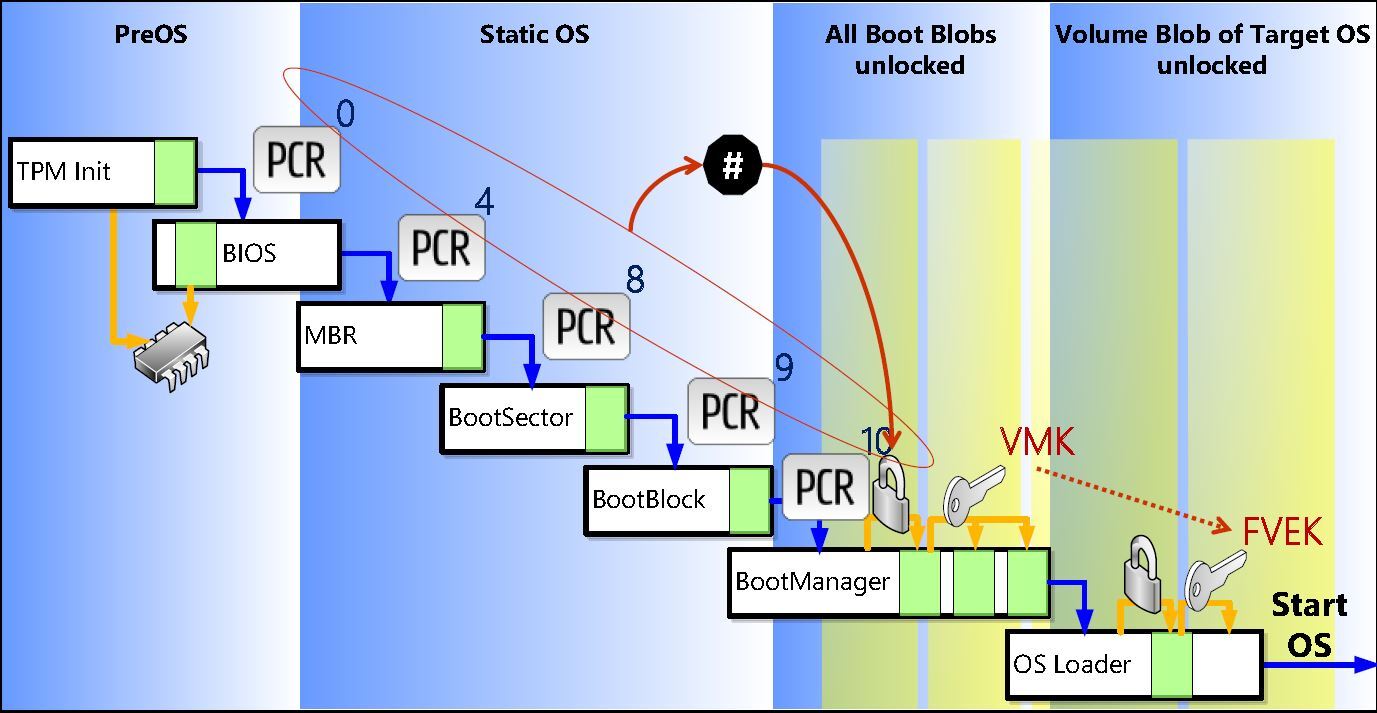
BitLocker relies on the system being able to verify that it hasn’t been changed. The TPM stores 24 Platform Configuration Registers which contains a measurement from when the system was shutdown and which the system checks when it starts. If anything in those registers comes up as having been changed, and the Validation Profile includes any register that has been changed, then the system will prompt for the Recovery Password before unlocking the protected drive.
The list of PCRs is as follows
- 0: Core Root of Trust of Measurement (CRTM), BIOS, and Platform Extensions
- 1: Platform and Motherboard Configuration and Data
- 2: Option ROM Code
- 3: Option ROM Configuration and Data
- 4: Master Boot Record (MBR) Code
- 5: Master Boot Record (MBR) Partition Table
- 6: State Transition and Wake Events
- 7: Computer Manufacturer-Specific
- 8: NTFS Boot Sector
- 9: NTFS Boot Code
- 10: Boot Manager
- 11: BitLocker Drive Encryption Access Control
- 12: Defined for use by the static operating system
- 13: Defined for use by the static operating system
- 14: Defined for use by the static operating system
- 15: Defined for use by the static operating system
- 16: Used for debugging
- 17: Dynamic CRTM
- 18: Platform defined
- 19: Used by trusted operating system
- 20: Used by trusted operating system
- 21: Used by trusted operating system
- 22: Used by trusted operating system
- 23: Application support
By default only PCRs 0, 2, 4, 5, 8, 9, 10 and 11 are included in the validation profile. You can add more of them via Group Policy however it makes the system more susceptible to prompting for a recover password following a system change.
Before you make any changes that may affect your chosen PCRs it is prudent to pause BitLocker and then resume it after you have made the changes and rebooted. This will ensure that BitLocker is aware of the changes and that they were made legitimately. If you don’t then you may find BitLocker asking for the recovery password (and sometimes it will keep doing that on every reboot)
manage-bde -pause C:
make the changes and reboot
manage-dbe -resume C:
BitLocker Boot Process
- PCR is Platform Configuration Register
- VMK is the Volume Master Key
- FVEK is the Full Volume Encryption Key
Disk Layout and Key Storage
- SRK is held in the TPM (which is a calculated value based on the validated PCRs)
- SRK encrypts the VMK (which is used for encrypting the FVEK)
- VMK encrypts the FVEK (which is used for encrypting data)
- FVEK and VMK are stored encrypted on the Operating System Volume
Key Protectors
Some key protectors include:
- TPM Only – vulnerable to hardware attacks, no impact for the user
- TPM plus PIN – vulnerable to hardware attacks, user must enter PIN at boot
- TPM plus USB – vulnerable to stolen USB key, user must protect the USB key
- TPM plus USB plus PIN – not vulnerable, user must protect the USB key and enter PIN at boot
- USB only – vulnerable to stolen key (no boot validation), user must protect USB key
There are many more including Certificate, Recovery Key, Recovery Password, Clear key, Password, etc.