This document seeks to address and clarify the small misunderstanding surrounding the GAL (Global Address List) and the OAB (Offline Address Book).
Quite often all Administrators, even Exchange Administrators simply refer to the users they see in the Address section of Outlook casually as the GAL for ease of reference, but really more often than not, you are looking at the OAB.
However sometimes in large complex organisations we have a situation where a new joiner joins and their colleagues want to email them immediately, but they don’t appear in Outlook for them so they call the Helpdesk “Why isn’t Joe Bloggs in the GAL??”
Well, the truth of the matter is that our new joiner Joe is in fact in the GAL, he just hasn’t yet made it to everyone’s Outlook Client – the Offline Address Book.
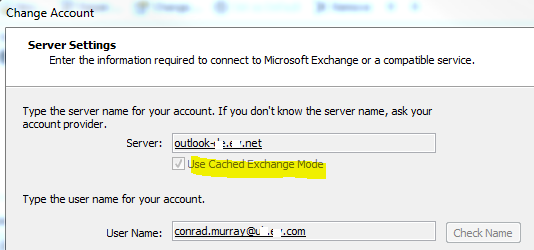
** This Blog is based on the assumption that all Outlook users are in cached mode.
After a change had been made to any attribute in f the Exchange / AD Address Book that are also included in the Offline Address Book (OAB), the following occurs:
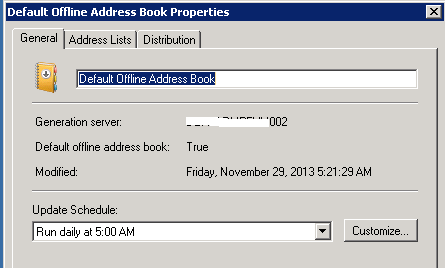
1. Exchange regenerates the OAB
· Default generation schedule: 24 hours
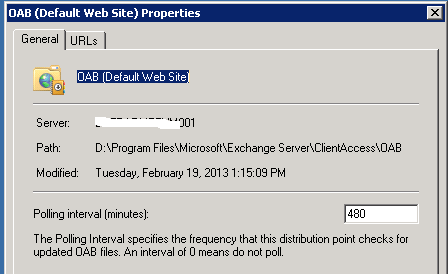
2. Exchange OAB Server distributes the OAB (Only for Exchange 2010, Exchange 2013 uses proxying instead)
· Default distribution schedule: 480 minutes
3. Outlook downloads the OAB
· Default update schedule: 24 hours
This means that in the worst possible scenario, an update to the Address Book won’t become available to the user until about 48 hours after the change.
This situation however is extremely rare since the default maintenance time on Exchange is at 5:00 AM and updates and downloads are usually performed during working hours.
*** NOTE: The GAL is essentially a real-time / online representation of AD Objects that are Mail Enabled for Microsoft Exchange ***
The GAL contains information for all email enabled users, Distribution Groups, and Shared Mailboxes and Exchange Resource Mailboxes.
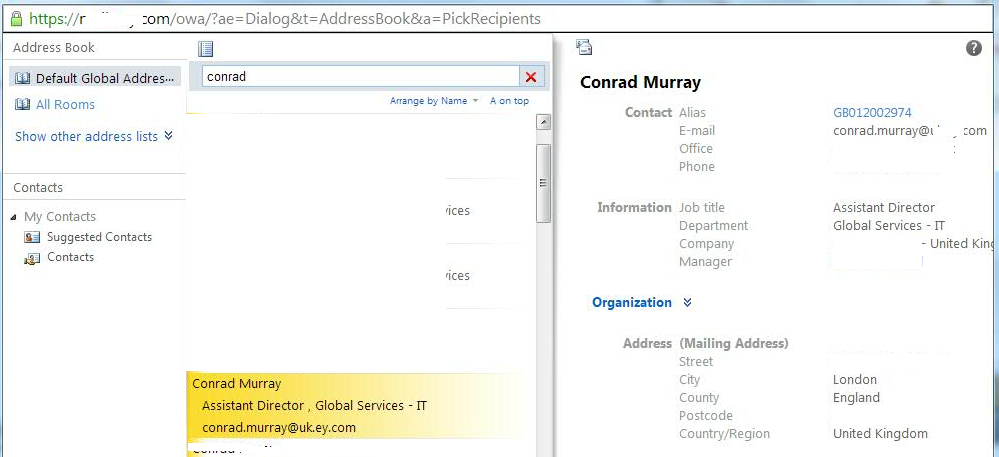
GAL Objects are directly viewable in the Exchange Management Console/Shell and OWA and Microsoft Outlook BUT ONLY IN ONLINE MODE – not cached mode.
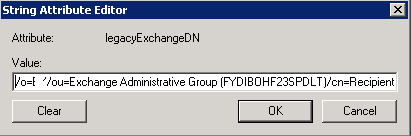
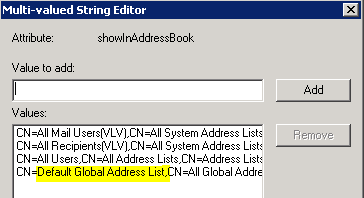
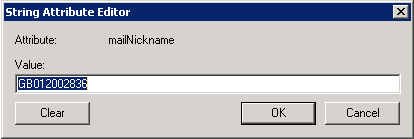
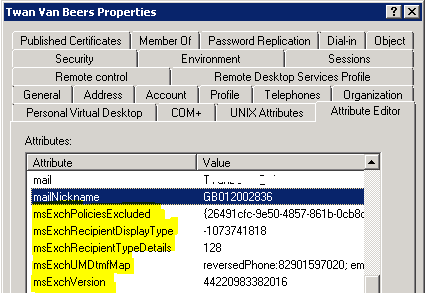
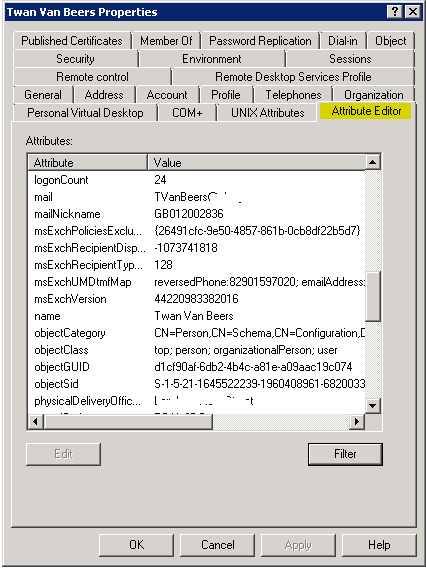
The GAL will only present objects that have AD Attributes beginning with msEXCH* (and some others) populated that it uses to filter on. If these attributes are present, then the AD Objects that are Mail-Enabled or Mailbox-Enabled will appear in the GAL – and ultimately the Offline Address Book.
You can see the list of attributes that will be put into the GAL using
Get-OfflineAddressBook 'Default Offline Address Book' | select -expandproperty configuredattributes
Some examples of these attributes includes:
legacyExchangeDN
·
ShowInAddressBook
·
mailNickName
·
msExch*
·
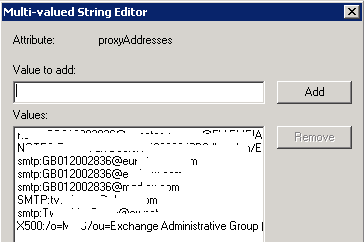
proxyAddresses
When Outlook users are running in cached mode, they rely on the Offline Address Book (OAB) to provide them with access to one or more addresses (that are always available when they are connected directly to Exchange)
The OAB is rebuilt and downloaded on a default schedule as shown below. Because of this, a new user may not be visible in the address book, or changes to a user’s name, address, etc. may not be available even though such changes have been made in Active Directory. This can occur even though no errors are present within the OAB rebuild process.
(* on the Server running it)
As mentioned before, this is only for Exchange 2010, Exchange 2013 avoids this step through the use of proxying
If left constantly running, Outlook in cached mode automatically updates the offline address book on the client every 24 hours.
The 24-hour time period is measured from the time that the offline address book was last downloaded successfully
For example, if you complete an offline address book download at 09:00 today, Outlook will start the offline address book download the next day at approximately 09:00. Therefore, different people will receive updates at different, random times.
The Offline Address book is downloaded by Outlook when it starts automatically. There is nothing else to change.
If you want to change the download interval, then that isn’t possible – Automatically Outlook will only download the OAB once every 24 hours or within 1-5 minutes when Outlook is restarted.
A. There are three ways:
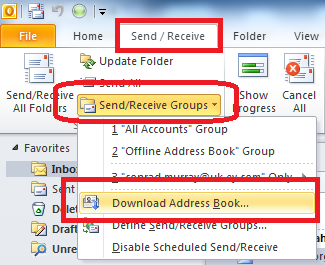
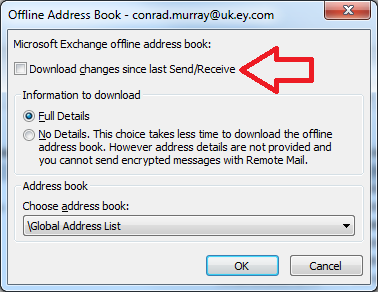
1) Try a manual Re-Sync
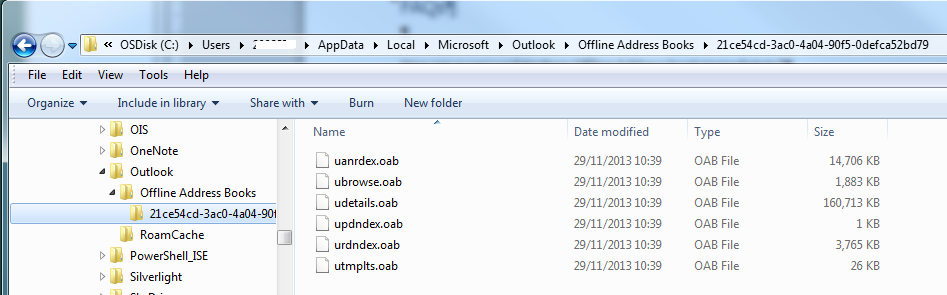
2) Close Outlook and delete the *.OAB files manually From here:
C:\Users\%username%\AppData\Local\Microsoft\Outlook\Offline Address Books\*\*.*
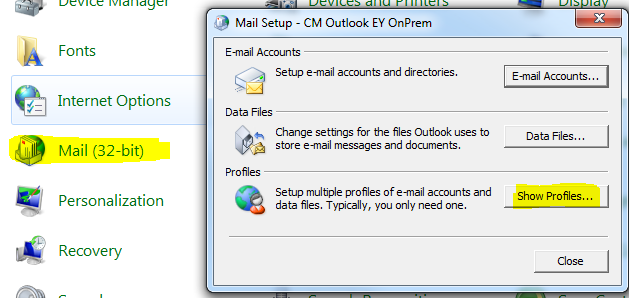
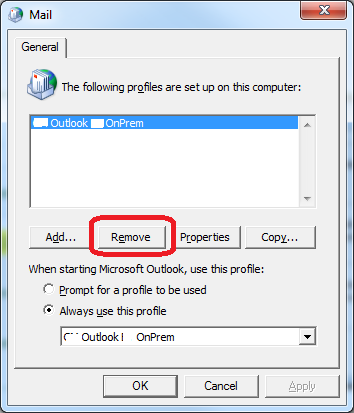
3) Delete and Recreate their Outlook Profile
Start Outlook again and follow Prompts
A: There are five ways.
a. In Cached mode Outlook always users the OAB to display users
3)
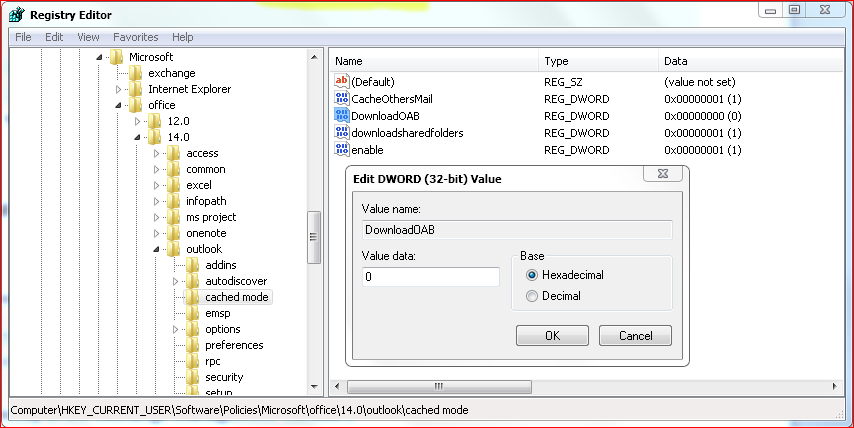
Use OAB non-cache mode (whilst still using Cached Mailbox Mode)
Close Outlook
Go to your registry and find this branch:
HKEY_CURRENT_USER\Software\Policies\Microsoft\office\14.0\outlook\cached mode
Set the DownloadOAB key to 0 (ZERO)
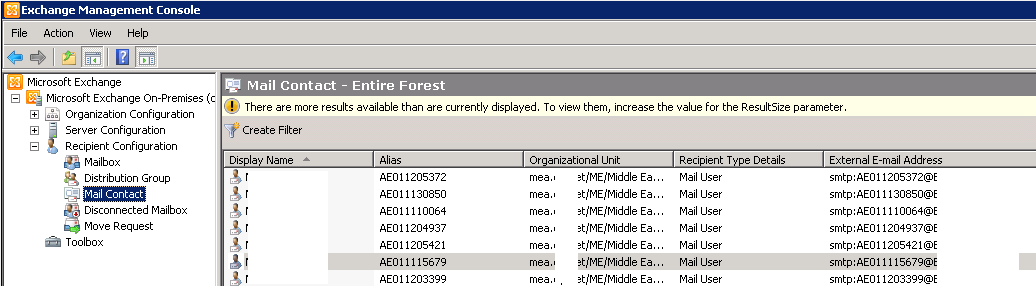
4) Look directly in the Exchange Management Console
5)
Use The Exchange Management Shell
[PS]
C:\Windows\system32>Get-Mailbox “Conrad Murray*” | FL
AddressListMembership,HiddenFromAddressListsEnabled,EmailAddressPolicyEnabled
AddressListMembership
: {\Mailboxes(VLV), \All Mailboxes(VLV), \All Recipients(VLV), \All Users,
\Default Global Address List}
HiddenFromAddressListsEnabled
: False
EmailAddressPolicyEnabled
: False
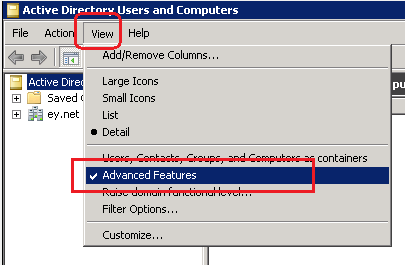
** You could also use Active Directory Users and Computers Attribute Viewer to look for the attributes listed above
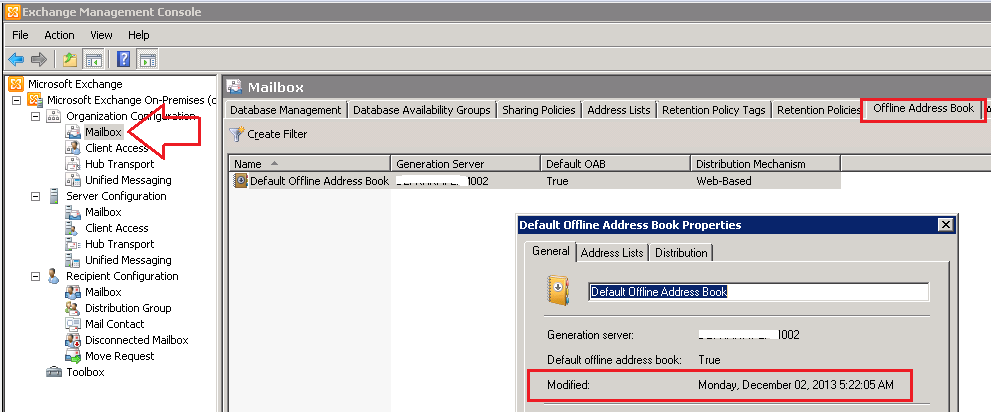
Get-OfflineAddressBook|FL LastTouchedTime